Settings
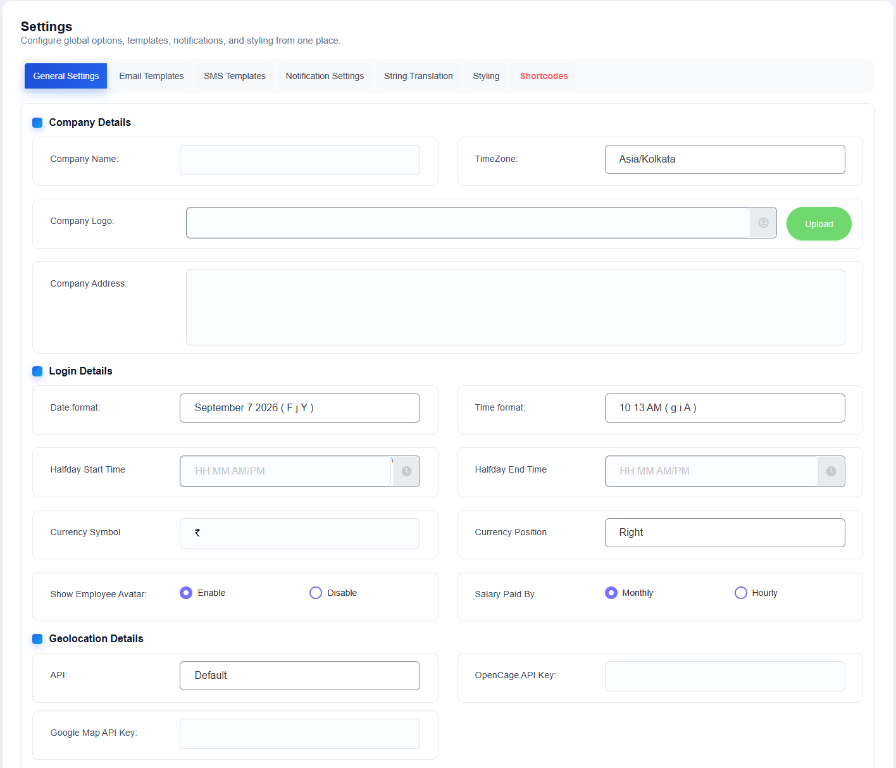
What this screenshot shows
The upper portion of General Settings contains the primary site/plugin configuration options visible in the installation. Review each field and option before saving because these settings establish the baseline behavior of the workforce system.
- The settings page is organized into tabs/sections.
- The upper section contains core configuration fields and toggles.
- Save configuration changes using the page's save control after reviewing the selected values.
- Customer tip: Use the screenshot as a visual guide, but follow the field-by-field instructions on this page for the exact configuration.
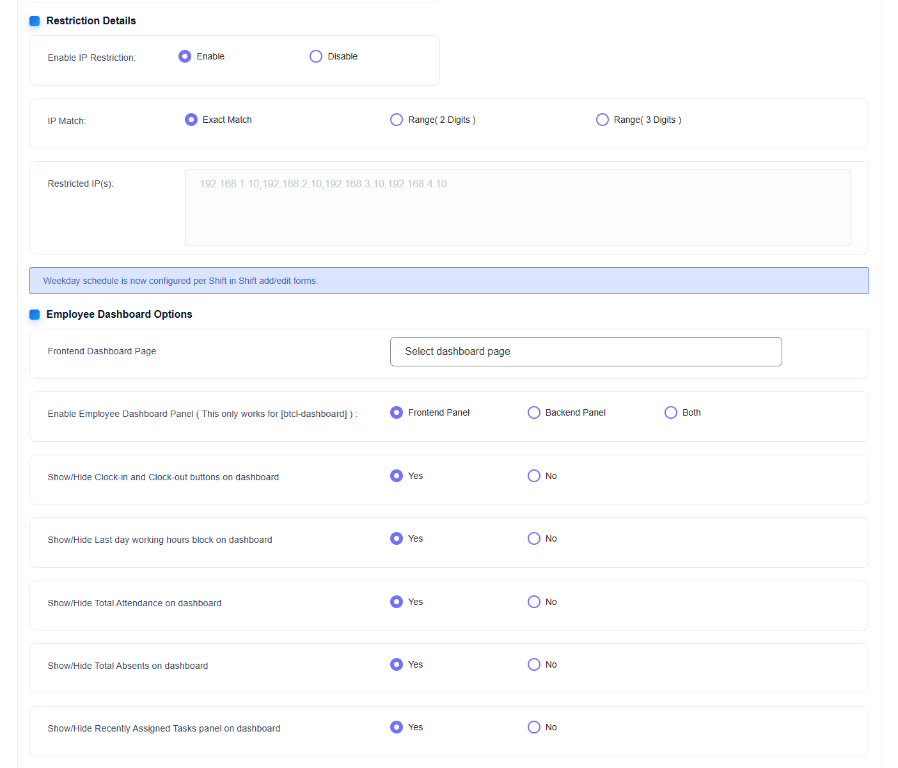
What this screenshot shows
The lower portion continues the General Settings configuration with additional options. Scroll through the complete settings page rather than assuming the first visible section contains every available option.
- The lower section contains additional configuration options below the first group.
- Multiple radio/toggle controls are visible for enabling or selecting behavior.
- Scroll through the full page before saving so that no related option is missed.
- Customer tip: Use the screenshot as a visual guide, but follow the field-by-field instructions on this page for the exact configuration.
The Settings screen contains these source-verified tabs: General Settings, Email Templates, SMS Templates, Notification Settings, String Translation, Styling and Supports.
General Settings
| Setting | What it controls |
|---|---|
| Company Name | Company identity used by Clockinator. |
| Timezone | Timezone used by the plugin's time-sensitive behavior. |
| Company Logo | Company branding. |
| Company Address | Company address information. |
| Date format | Displayed date formatting. |
| Time format | Displayed time formatting. |
| Halfday Start/End Time | Half-day time boundaries. |
| Currency Symbol / Position | Currency display configuration. |
| Show Employee Avatar | Employee avatar display behavior. |
| IP Restriction | Whether IP restriction is enabled. |
| Restricted IPs | Configured restricted IP data. |
| Salary Method | Salary calculation method selection exposed by settings. |
| Dashboard | Dashboard mode selection. |
| Dashboard Page | Configured dashboard page. |
| Clock In/Out Button | Front-end clock button visibility. |
| Last Day Working Hours | Dashboard display option. |
| Total Attendance / Absents | Dashboard display options. |
| Recent Tasks | Dashboard display option. |
| Dashboard Tabs | Front-end dashboard tab configuration. |
Location/map and API-related settings
The general settings source also reads OpenCage and Google API keys, map API type, kiosk/API keys, automatic key generation, API rate limit, replay window, IoT unlock seconds and IoT auto-clock behavior.
Other settings tabs
- Email Templates — edit configured email templates.
- SMS Templates — edit configured SMS templates.
- Notification Settings — configure notification behavior exposed by the plugin.
- String Translation — plugin text/string customization.
- Styling — plugin styling controls.
- Supports — support/help-related content.
Live Notification Settings Reference
The following screenshot is included here because Notification Settings is one of the configuration areas available from the main Settings screen. Use it as a visual reference when following the notification-related instructions in this chapter.
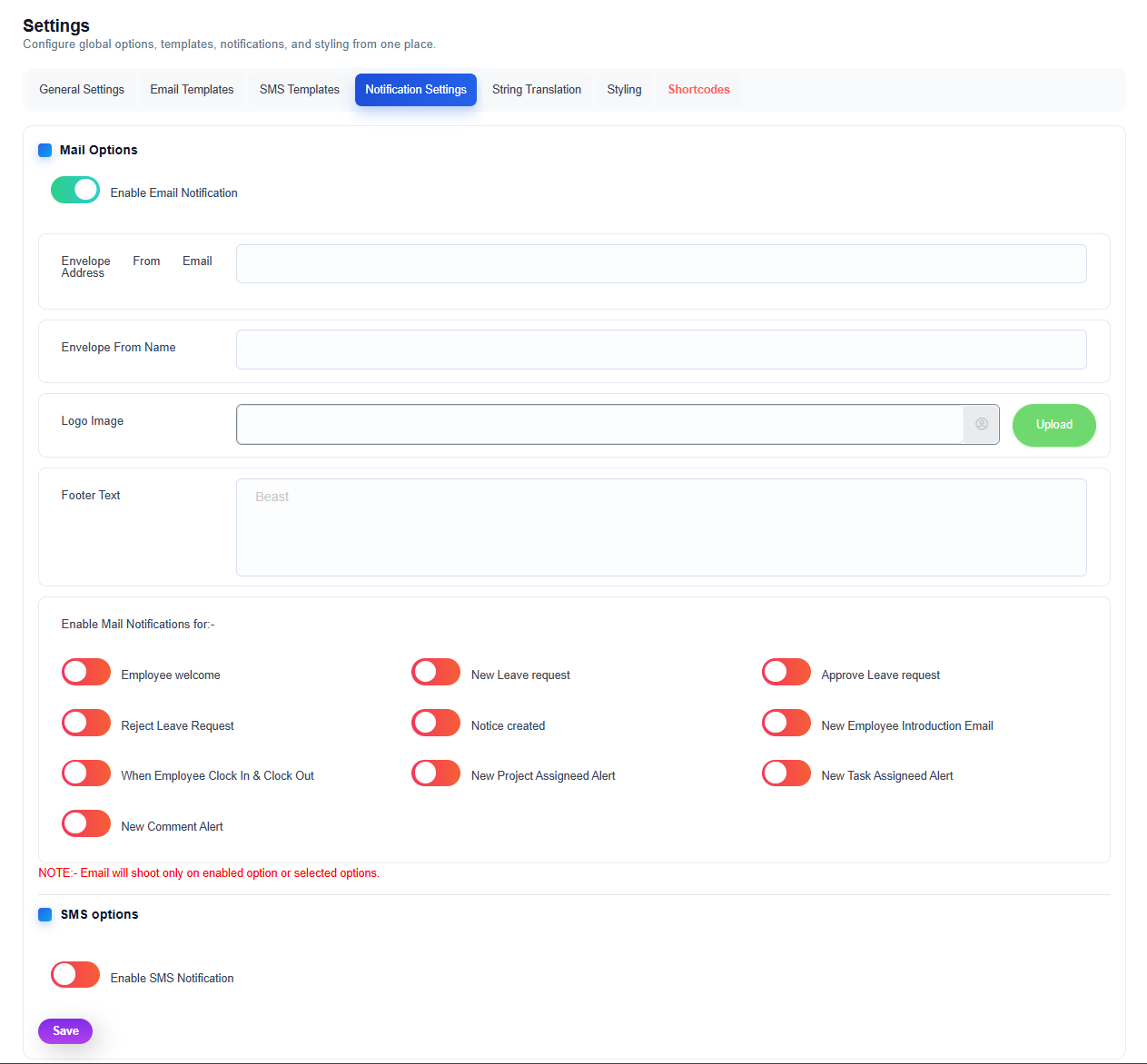
How to read this screen
- Settings tabs: The top navigation separates general options, email templates, SMS templates, notification settings, string translation, styling, and shortcodes.
- Mail Options: This section controls the email notification master switch and sender presentation.
- Event switches: The individual switches determine which supported events can trigger email notifications.
- SMS options: The SMS master switch is displayed below the email controls.
- Save: Always save after changing settings. If a notification does not fire, first verify both the master switch and the individual event switch relevant to the action.