Documentation / Reports
Reports
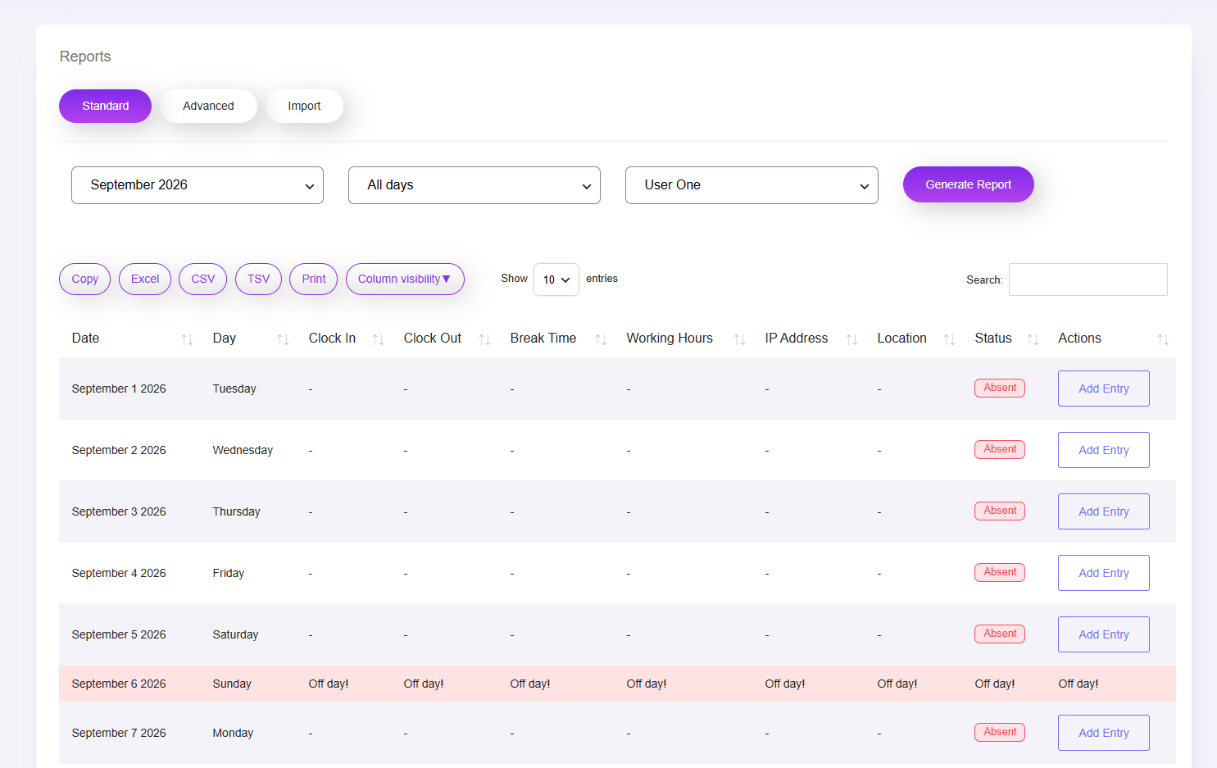
What this screenshot shows
The Reports screen combines date and record filters with the attendance/time data returned by the plugin. Select the appropriate period and filters, review the generated rows, and use the available actions to inspect individual records or export information where enabled.
- Report tabs/options are visible near the top of the page.
- Date and record filters determine which attendance/time data is displayed.
- The results table provides detailed rows and available actions for reviewing report data.
- Customer tip: Use the screenshot as a visual guide, but follow the field-by-field instructions on this page for the exact configuration.
Reports provide operational visibility into attendance, working time and related workforce data. The supplied source contains a dedicated reports controller, actions and export logic.
How to use reports
- Open Clockinator Pro → Reports.
- Select the date/month or other filters exposed by the report screen.
- Apply employee/department or other available filters.
- Review the result.
- Use the available export/print/download action if required.
Interpretation: Report totals are only as reliable as the underlying employee, shift, timezone and clocking data. Test a single employee before relying on organization-wide totals.