Documentation / Payslip
Payslip
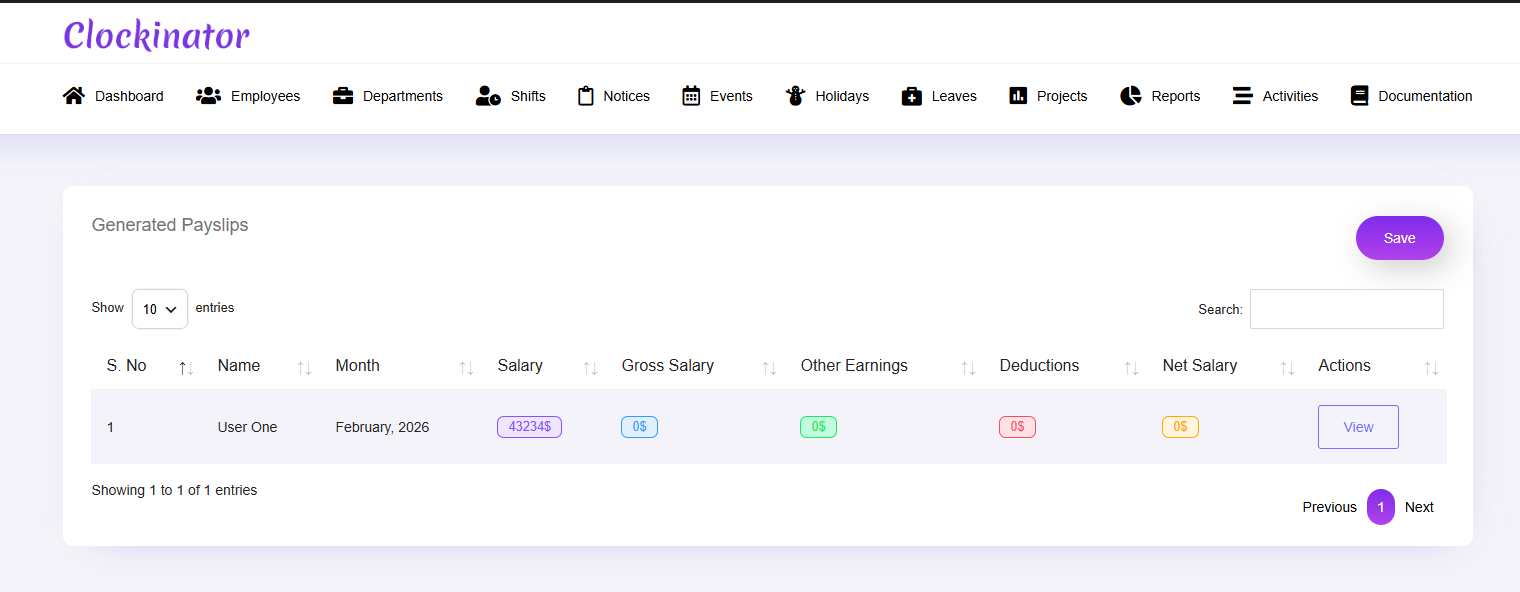
What this screenshot shows
This screen lists generated payslips and provides the available management actions. Use the period and employee information shown in the list to verify that the correct payslips have been generated before distributing or reviewing them.
- The page lists generated payslip records in a table.
- Employee, period and status information help identify each payslip.
- Use the available row actions to review or manage an individual payslip.
- Customer tip: Use the screenshot as a visual guide, but follow the field-by-field instructions on this page for the exact configuration.
Clockinator Pro includes a dedicated Payslip panel and extensive payslip actions.
Workflow
- Open Clockinator Pro → Payslip.
- Select the employee/period options shown.
- Generate or view the payslip.
- Review employee, salary and attendance-related values.
- Use the available print/download/send actions.