Employees
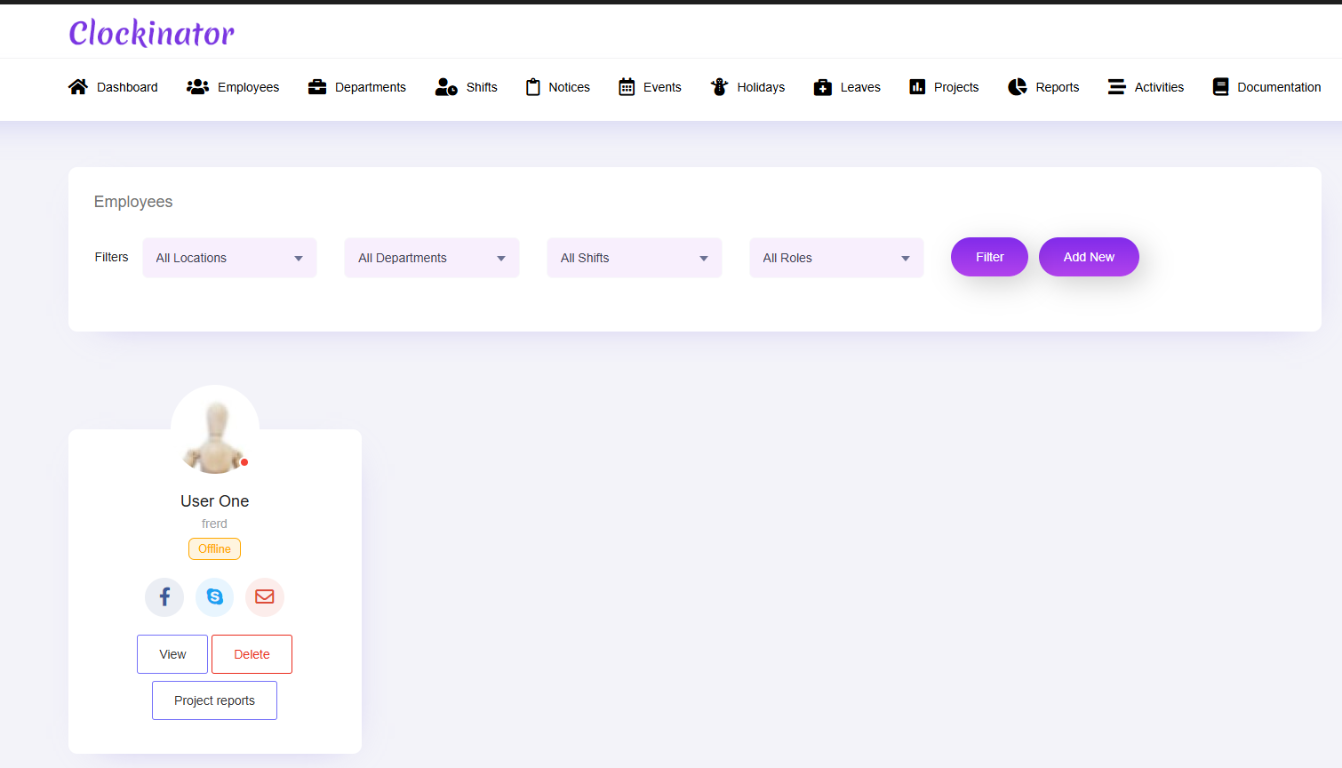
What this screenshot shows
The Employees screen is the central place for viewing and managing staff records. The filters at the top help narrow the list, while the employee card/record provides quick access to employee actions.
- The top controls provide filtering/selection options for the employee records.
- Employee records are displayed as cards with quick status/actions.
- Use this page to locate an employee before opening or editing the full profile.
- Customer tip: Use the screenshot as a visual guide, but follow the field-by-field instructions on this page for the exact configuration.
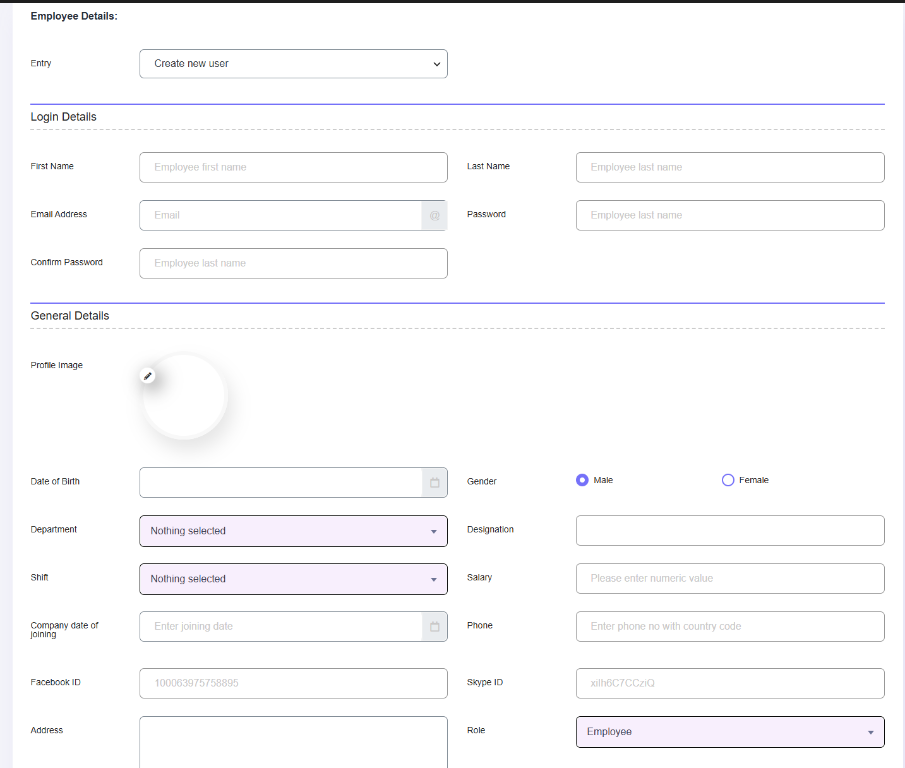
What this screenshot shows
The first part of the employee form collects the employee's core identity, contact, employment, and assignment information. Work through the fields from top to bottom and use the selections that match your organization's structure.
- The upper form section contains the employee's account/profile and general information.
- Several fields use dropdowns/select controls for standardized values.
- Complete the visible identity and organizational fields before moving to the next section.
- Customer tip: Use the screenshot as a visual guide, but follow the field-by-field instructions on this page for the exact configuration.
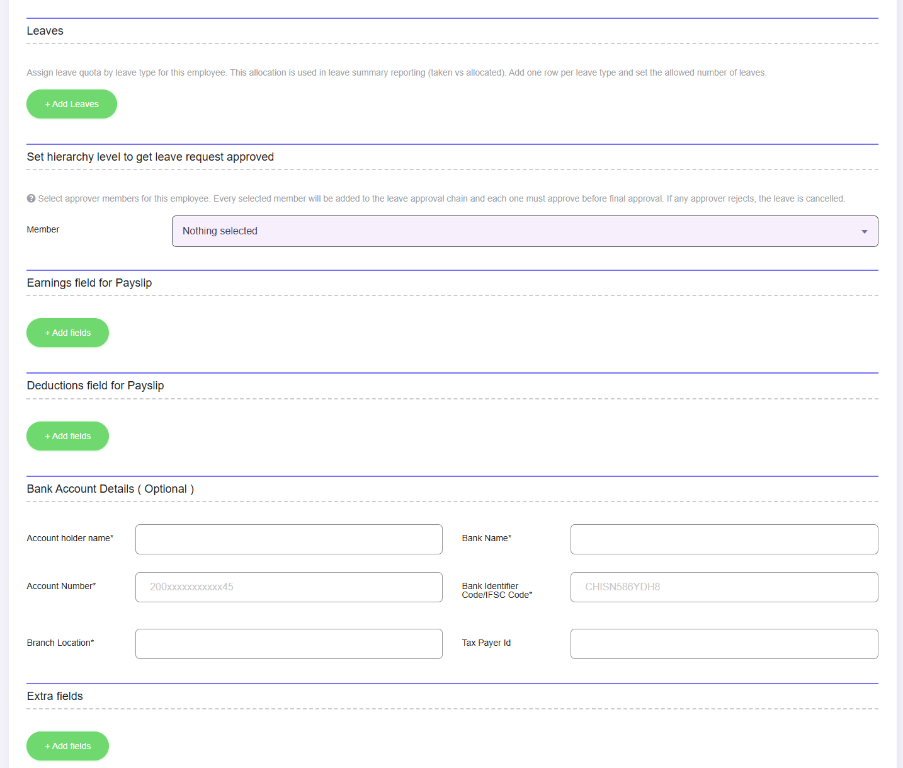
What this screenshot shows
The lower part of the employee form contains additional employee configuration and organizational details. Review these fields carefully because employee-level assignments can affect how the person is handled by attendance, payroll, and other modules.
- The lower form continues the employee configuration with additional organizational and employment fields.
- The visible controls include selection fields and numeric/text inputs.
- Review these values carefully because they become part of the employee record used by other modules.
- Customer tip: Use the screenshot as a visual guide, but follow the field-by-field instructions on this page for the exact configuration.
Employees are the core workforce records used by Clockinator Pro. The source provides employee list/edit screens, employee actions and employee-specific menu behavior.
Creating an employee
- Go to Clockinator Pro → Employees.
- Choose the add/create action provided by the page.
- Complete the employee information.
- Select the employee role where applicable.
- Assign department and other available organization information.
- Save the employee.
Roles visible in the employee form
| Role | Source identifier | Purpose |
|---|---|---|
| Employee | employee | Standard workforce member. |
| HR Manager | hr_manager | Management-level employee access used by Clockinator's menu/page logic. |
| Department Head | d_head | Department-level role exposed by the employee form. |
Employee data
The employee edit screen contains profile and organization-related fields. Use the labels displayed by your version as the authoritative field names; do not assume a field is required unless the form/validation indicates it.