Documentation / Dashboard
Dashboard
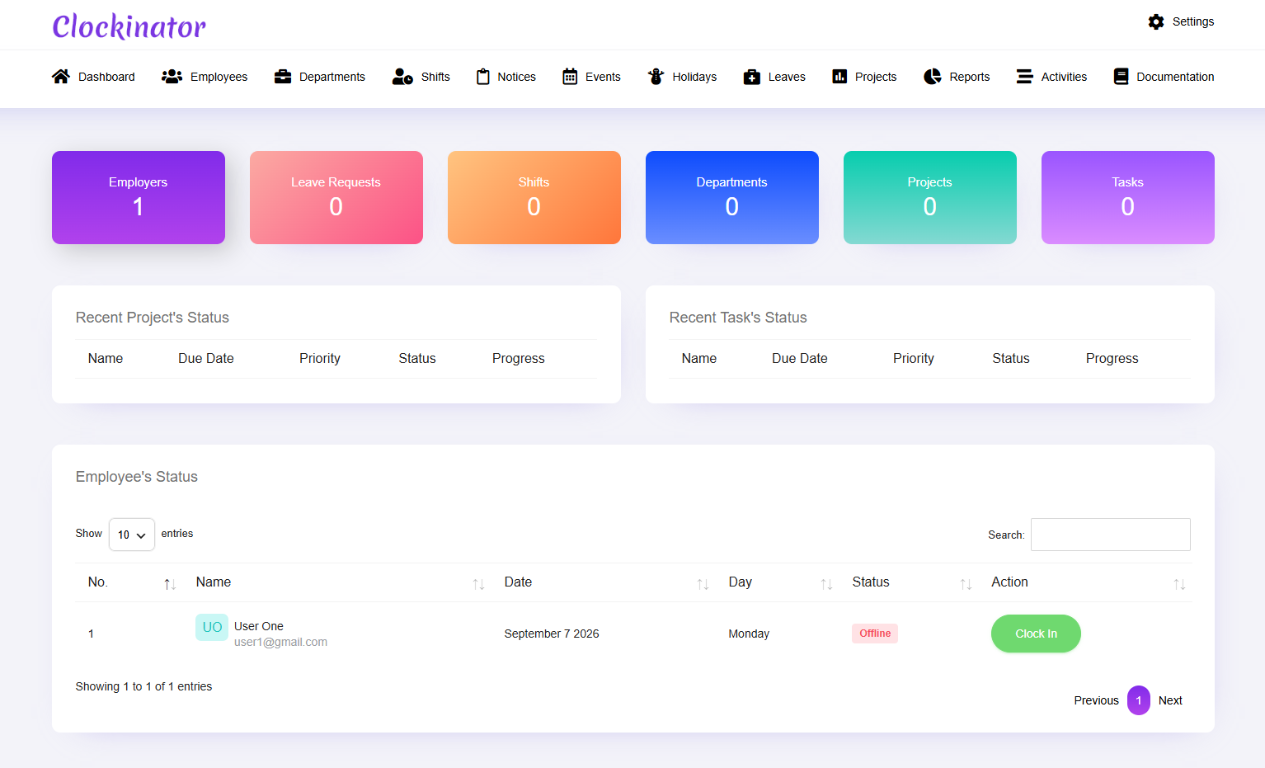
What this screenshot shows
This is the main administration overview. The summary cards and data tables help you quickly understand the current state of employees, projects, and day-to-day activity. The exact values change as you add and update records.
- Top navigation gives access to the main Clockinator modules.
- Summary cards provide at-a-glance counts/metrics for the current installation.
- The lower dashboard areas provide recent/operational information that can be used to jump into detailed records.
- Customer tip: Use the screenshot as a visual guide, but follow the field-by-field instructions on this page for the exact configuration.
The Clockinator Pro dashboard is the primary administration overview. The source includes a dedicated dashboard controller and dashboard widgets/metrics.
How to use the dashboard
- Open Clockinator Pro → Dashboard.
- Review the current workforce/attendance information shown by your installation.
- Use dashboard links or navigation to move to the underlying records when a widget provides a linked action.
Important: Dashboard values depend on the records already created in Employees, Shifts, Attendance/clocking, Leaves, Projects and other modules. Empty installations will naturally show limited data.