
Smart Time Tracking
Track every work session. See every hour. Keep your team moving.
Add a dedicated live time-tracking workspace to Clockinator Pro with start, pause, resume and stop controls, project and task mapping, manual entries, timesheets and productivity insights — all inside WordPress.
Live
Start, pause, resume & stop
Manual
Backfill missed work time
CSV
Export timesheet data
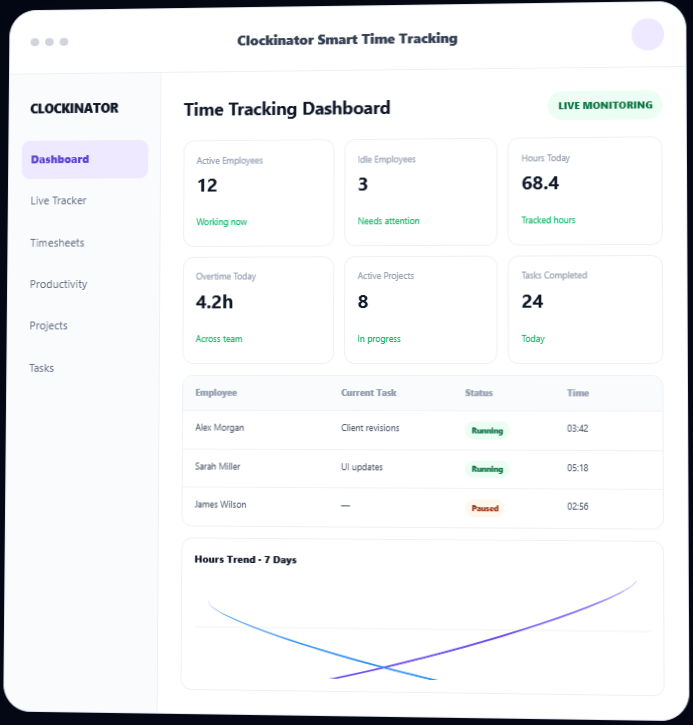
From clock-in to completed work, keep every hour connected
Clockinator Pro handles your employee and attendance foundation. Smart Time Tracking adds a dedicated workspace for recording work sessions, linking time to projects and tasks, reviewing productivity and giving employees a simple tracker they can use from the frontend.
Live work sessions
Start, pause, resume and stop the current timer.
Project & task context
Optionally map every session to a Clockinator project and task.
Manual corrections
Add time that was missed or recorded outside the live timer.
Team visibility
See active and idle employees from one admin dashboard.
Timesheet-ready logs
Review time entries with dates, duration, project and task details.
Frontend tracking
Give logged-in employees a tracker without sending them into wp-admin.
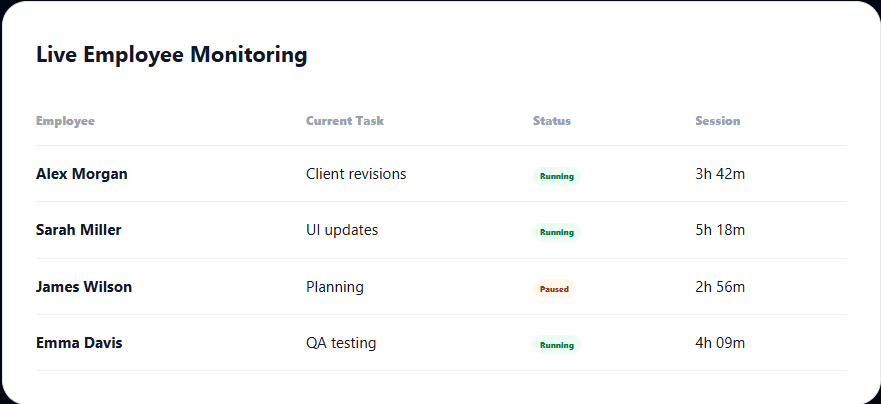
See who's working, how long they've worked and where time is going
The addon brings live monitoring and time analytics into one admin workspace with operational KPIs and team-level visibility.
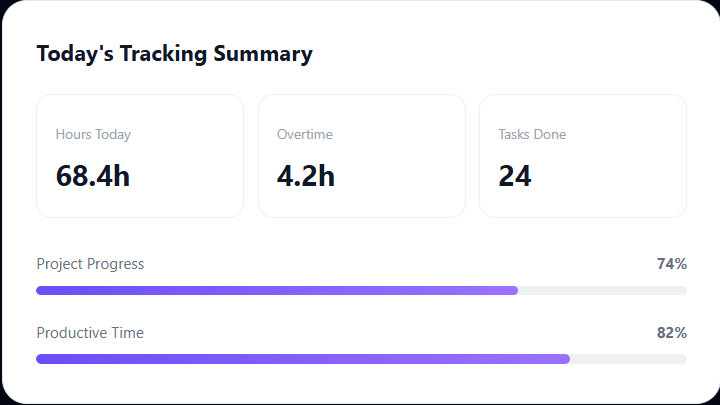
Understand time usage, not just total hours
Review active versus idle time, productivity score, completed sessions and employee summaries over a selected date range.
42h 18m
Total Logged
3h 42m
Idle Today
82%
Productivity Score
Active
Current Status
7-Day Hours Trend
Compare tracked hours across the last seven days and spot changes in workload.
Top Performers
Review employees with the highest logged hours and session activity.
Time Distribution
Compare productive and idle time to understand how tracked work is distributed.
Turn raw sessions into clean timesheet records.
Filter time logs by date and employee, review project and task context, and export the selected data as CSV.
Timesheet Filters
Choose a date range and optionally narrow the results to a specific employee.
CSV Export
Export the selected timesheet records for payroll, review or further processing.
Session Details
Review employee, project, task, date, start, end, duration, status and entry type.
Payroll-Ready Review
Use completed sessions as a clean source for downstream payroll and reporting workflows.
Never lose track of work that happened outside the timer
Employees can add manual time with hours, project, task and notes so missed sessions can be documented without changing the live tracking workflow.
Hours · 2.50
Project · Website Redesign
Task · Bug fixing
Type · Manual
Notes · Client revisions, bug fixing…
Recover work logged away from the tracker.
Attach the time to the correct project and task.
Leave a reason or work description with the entry.
Connect time to the work behind the hours
Use Clockinator project and task context while starting timers and reviewing time logs. The addon also provides project and task management screens for tracker workflows.
Projects
Create, update and organize projects used by the Smart Time Tracking workflow.
- Project list
- Create & edit projects
- Project descriptions
- Project tracking context
Tasks
Create and manage tasks connected to projects, employees and estimated hours.
- Task title & description
- Estimated hours
- Open / In Progress / Completed
- Employee assignment
Project Progress
See active project progress alongside time activity from the dashboard.
- Progress percentage
- Active project list
- Task activity
- Time-to-work context
Put the timer where your employees work
Use the Smart Time Tracker shortcode or Elementor widget to place live time tracking on any suitable frontend page for logged-in Clockinator employees.
Frontend Shortcode
Use [cstt_smart_tracker] to render the employee tracker on a WordPress page.
Elementor Widget
Add the Smart Time Tracker widget directly from Elementor with no extra configuration.
Employee Self-Service
Logged-in employees can start and manage their own sessions without exposing the full admin workspace.
From installation to tracked time in afew steps
1
Install Clockinator Pro
AI Copilot extends the Clockinator Pro workforce system.
2
Install Smart Time Tracking
Activate the addon and complete its license setup.
3
Choose the tracking location
Use the admin tracker or place the frontend tracker with shortcode/Elementor.
4
Track & manage sessions
Start, pause, resume, stop or add manual time with project and task context.
5
Review & export
Use dashboards, productivity views and timesheets to review tracked work.
A focused tracking layer for the teams already using Clockinator
HR
HR & Operations
Get a live view of employee activity, hours, idle time and overtime.
PM
Project Managers
Connect tracked time with projects and tasks to understand where work is going.
TM
Remote Teams
Give distributed employees a simple frontend timer and centralized time history.
$
Payroll Teams
Review completed sessions and export filtered time records for downstream payroll workflows.
Upgrade Clockinator with focused time tracking.
The current BeastThemes product page lists Smart Time Tracking at $5/month. Keep or replace this pricing according to your final commercial plan.
Everything you need to track work accurately.
A dedicated tracking layer for teams that need live timers, manual corrections, project and task context, timesheets and productivity visibility without moving away from WordPress.
Live timer controls
Start, pause, resume and stop.
Manual entries
Add missed time with notes.
Project + task mapping
Keep time connected to work.
Dashboard analytics
Live employees, trends and productivity.
Smart Time Tracking
$5
Monthly
- Live start / pause / resume / stop timer
- Manual time entries with notes
- Project & task selection
- Live employee monitoring
- Time & productivity dashboard
- Timesheets with date & employee filters
- CSV timesheet export
- Frontend shortcode & Elementor widget
- Regular updates and priority support
Frequently asked questions
Everything you need to know before getting started.
Does Smart Time Tracking work without Clockinator Pro?
No. The addon requires Clockinator Pro to be active and uses its employee, project, and task environment.
Can employees start and stop their own timer?
Yes. Logged-in Clockinator employees can use the Smart Time Tracker to start, pause, resume and stop their sessions.
Can I put the timer on a frontend page?
Yes. The addon provides the [cstt_smart_tracker] shortcode and an Elementor Smart Time Tracker widget.
Can employees add time manually?
Yes. Manual entries support hours, optional project and task mapping, and notes.
Can I track time against projects and tasks?
Yes. Live and manual entries can be associated with Clockinator projects and tasks.
Can administrators monitor employees live?
Yes. The dashboard includes Live Employee Monitoring with employee, current task, project, status and session time.
Can I export timesheets?
Yes. The Timesheets module supports filtered CSV export.
Does the dashboard show productivity information?
Yes. The dashboard and Productivity Logs provide hours trends, top performers, idle-time analytics, productivity score, daily employee summaries and completed sessions.
What happens when an employee pauses a timer?
The session is stored as paused and can be resumed. The addon also records break-related activity back into the Clockinator Pro environment when the linked base report is available.
Requires Clockinator Pro
This addon extends Clockinator Pro. It works alongside the core plugin and shares the same custom data tables, role system and audit trail.
Every hour deserves a clear record.
Add live time tracking, manual entries, project and task context, productivity analytics and frontend tracking to your Clockinator Pro installation.