BeastThemes AI Agent for WooCommerce
Pro + Agency
Complete documentation for installation, AI, RAG, WooCommerce, bookings, channels, automation, integrations, agency branding and production diagnostics.
Overview
Introduction to BeastThemes AI Agent for WooCommerce Pro and the Agency Addon
BeastThemes AI Agent for WooCommerce combines AI support, product and order assistance, knowledge retrieval, bookings, channels, automations, integrations, diagnostics and analytics inside WordPress. The Agency Addon adds client management, reusable deployment presets, agency controls and white-label branding.
Requirements & Installation
Before you begin
Installation
Install and activate BeastThemes AI Agent for WooCommerce Pro first. The Agency Addon is designed to work with the existing Pro entitlement. After activation, open the plugin's admin area and work through Settings before configuring optional modules such as channels, external booking adapters and automations.
Quick start
- Configure the AI provider and API key.
- Add your business name and description.
- Configure RAG and run indexing if you want site knowledge.
- Enable WooCommerce-specific abilities when needed.
- Configure the chat widget and test a storefront question.
- Add bookings, voice, channels, automations or integrations after the basic chat flow is working.
Pro → Settings
Core AI configuration
The main Settings screen contains the AI provider, business context, Embedding / RAG, Booking System, Widget Appearance, WooCommerce Order Status, Voice Mode and Data controls.
Setup steps
- Open the plugin admin area and select Settings.
- Configure the AI provider, model and LLM API key.
- Add your Business Name and optional Description.
- Configure Embedding / RAG if you want indexed site knowledge.
- Enable Booking System and define services when appointments are required.
- Configure Widget Appearance, Order Status and Voice Mode as needed.
- Review the Data option and click Save Settings.
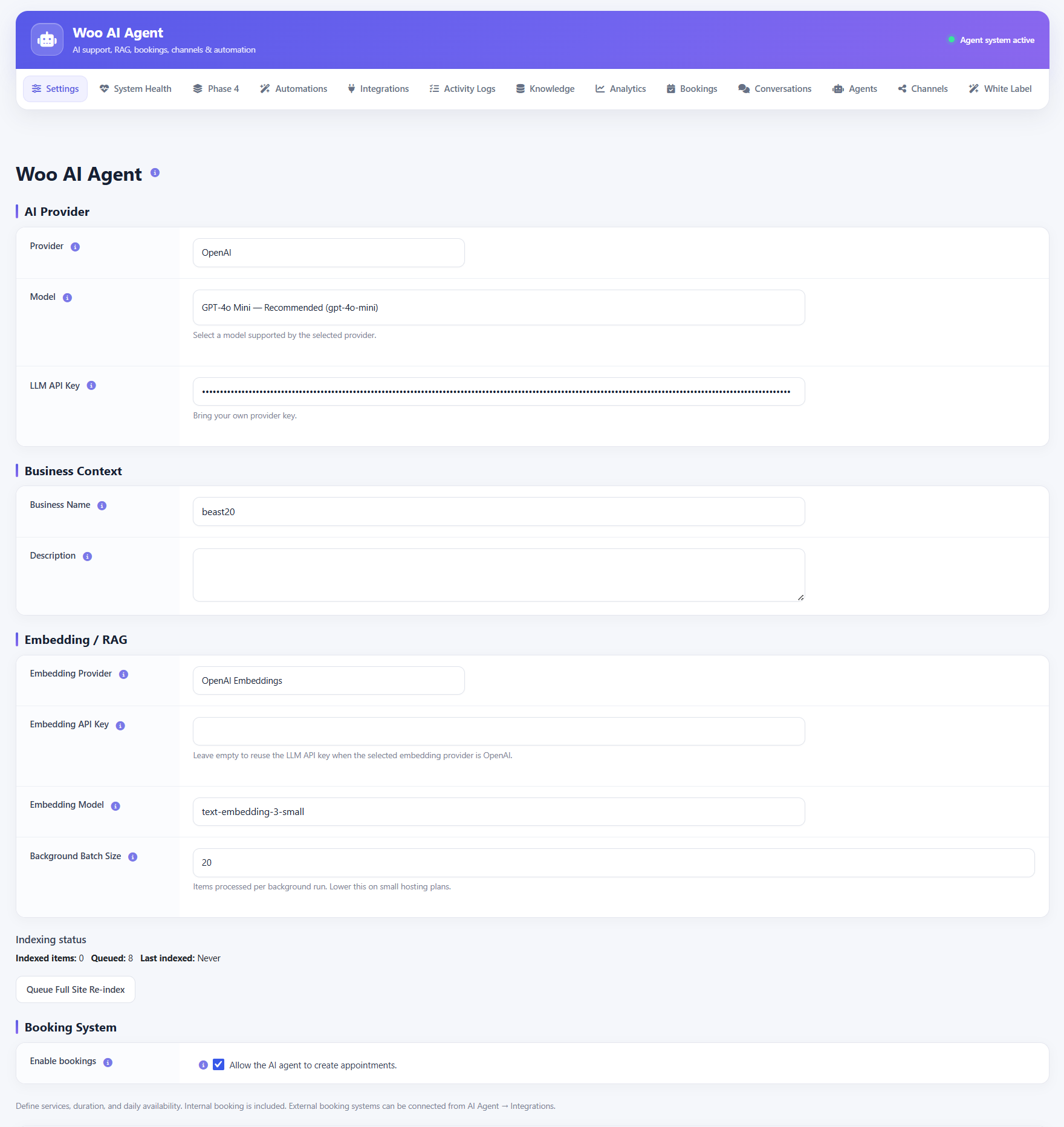
AI Provider & Business Context
Connect the model and define your business
Choose the AI provider and model, then provide the provider API key. Business Context lets you supply the business name and description that can be used by the agent when responding. Keep API credentials private and never expose them in frontend content.
Embedding / RAG
Index site knowledge for retrieval
The Embedding / RAG area lets you select an embedding provider and model, optionally provide a separate embedding API key, and control the background batch size. The screen also shows indexing status and provides a full-site re-index action.
Setup steps
- Select the embedding provider.
- Enter an embedding API key if a separate key is required.
- Choose the embedding model.
- Set a suitable background batch size for your hosting environment.
- Use Queue Full Site Re-index to rebuild the index.
- Monitor Indexed items, Queued items and Last indexed status.
WooCommerce
Product, order and store abilities
BeastThemes AI Agent for WooCommerce can use WooCommerce-specific abilities for product lookup, order status, coupons, store information and payment links when the required configuration is available.
Common abilities
- Product search and recommendations.
- Secure order-status lookup with customer verification.
- Coupon validity lookup.
- Store information lookup.
- Stripe/PayPal payment-link generation when configured.
Booking System
Create bookable services
Enable bookings to allow the AI agent to create appointments. Each bookable service can have its own name, duration and daily availability. Add multiple services when different appointment types require different schedules.
Setup steps
- Enable bookings.
- Add a bookable service.
- Enter the service name customers will see.
- Set the appointment duration in minutes.
- Set daily availability using the 24-hour format.
- Add additional services when needed.
- Save the main plugin settings.
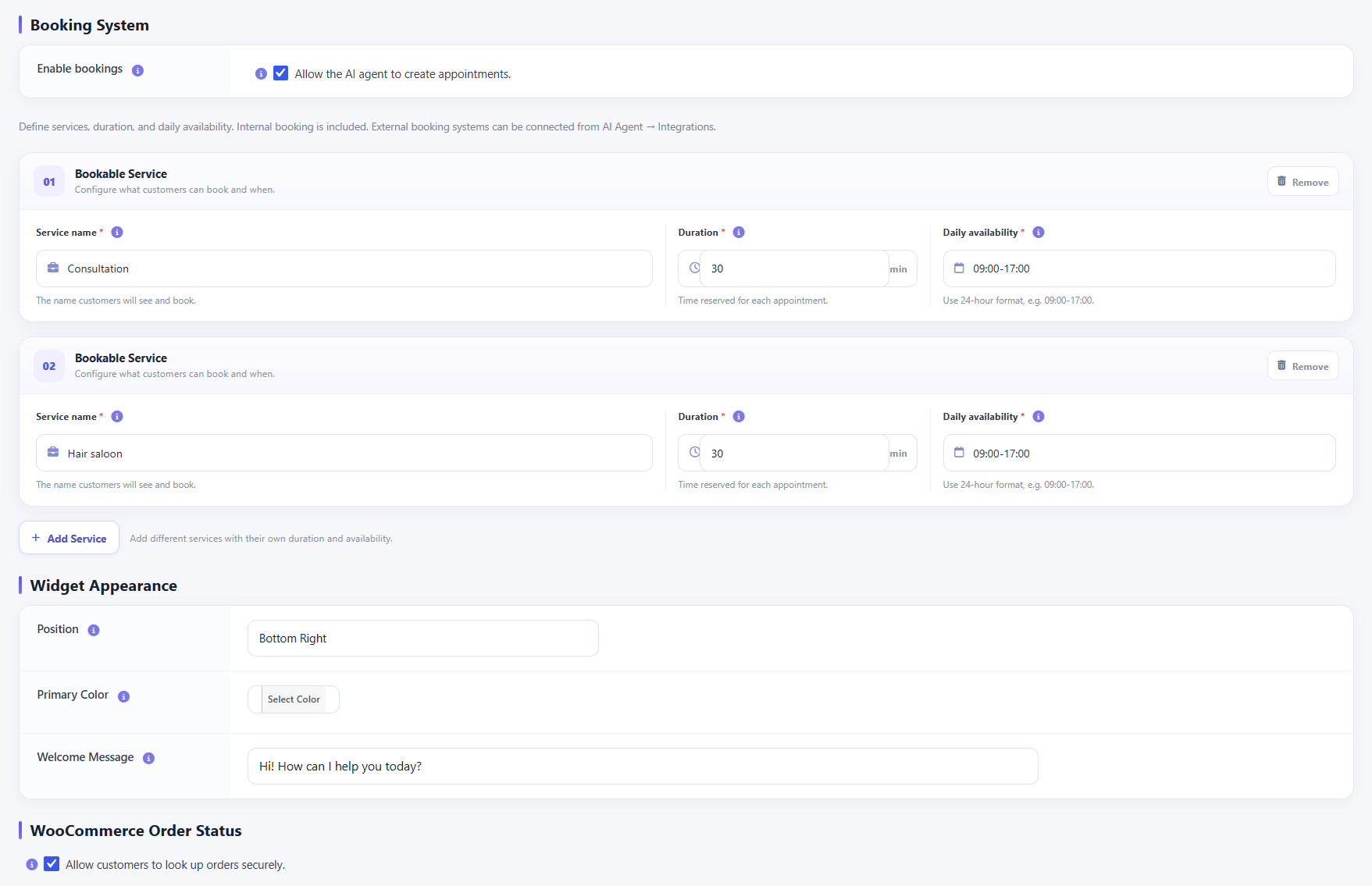
Widget Appearance
Configure the storefront chat experience
Set the widget position, primary color and welcome message. The storefront widget is the customer-facing entry point for AI conversations and can expose product, order, booking and voice actions according to the enabled configuration.
Voice Mode
Enable speech-to-text and text-to-speech
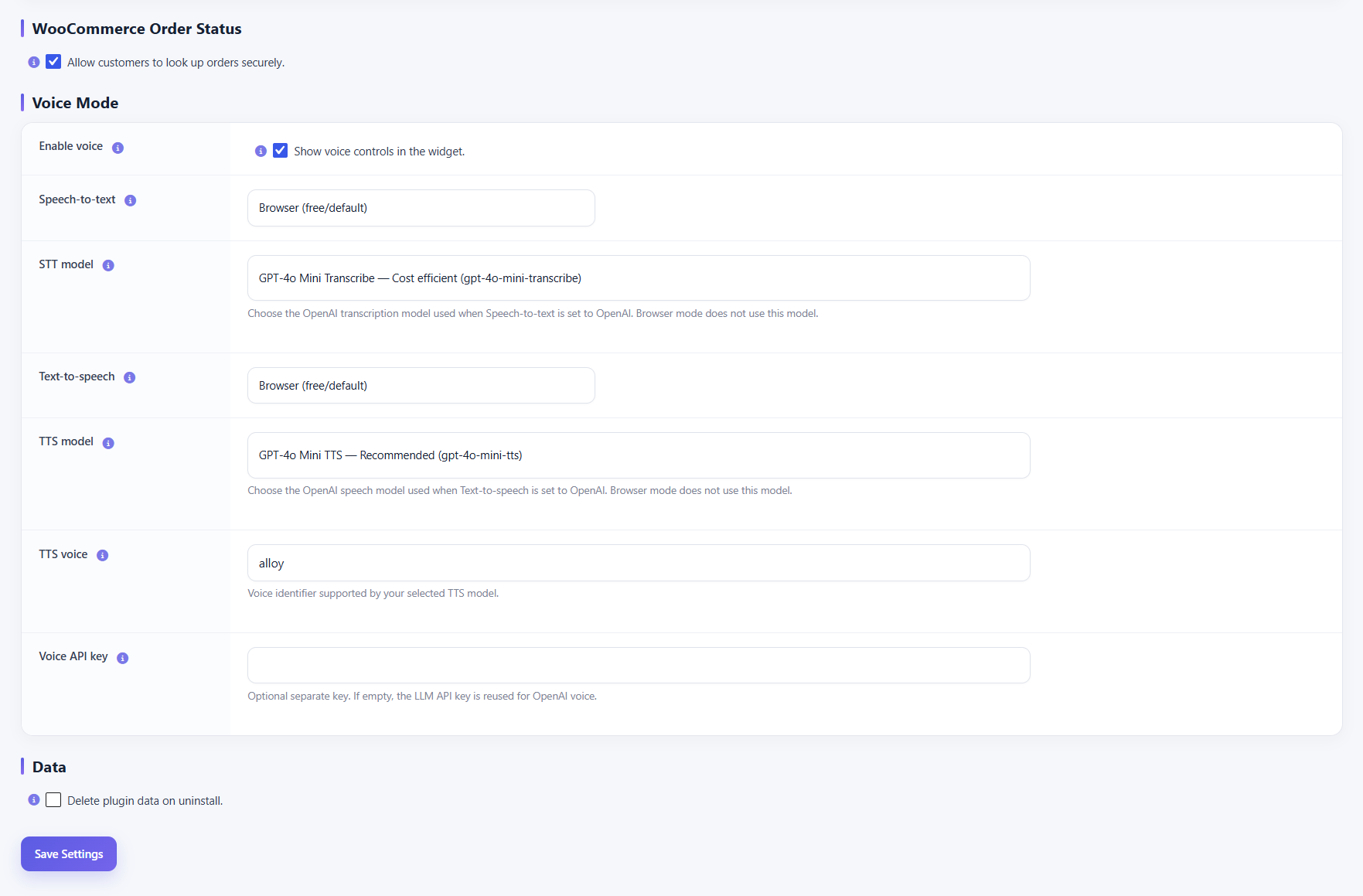
Voice Mode can expose voice controls in the widget. The supplied configuration supports browser/default speech services and OpenAI speech models, with separate STT/TTS model and voice settings plus an optional voice API key.
Setup steps
- Enable Voice to expose voice controls in the widget.
- Choose the speech-to-text provider.
- Choose the STT model when an API provider is used.
- Choose the text-to-speech provider.
- Choose the TTS model and voice.
- Optionally provide a separate Voice API key.
- Save Settings and test the widget microphone/audio controls.
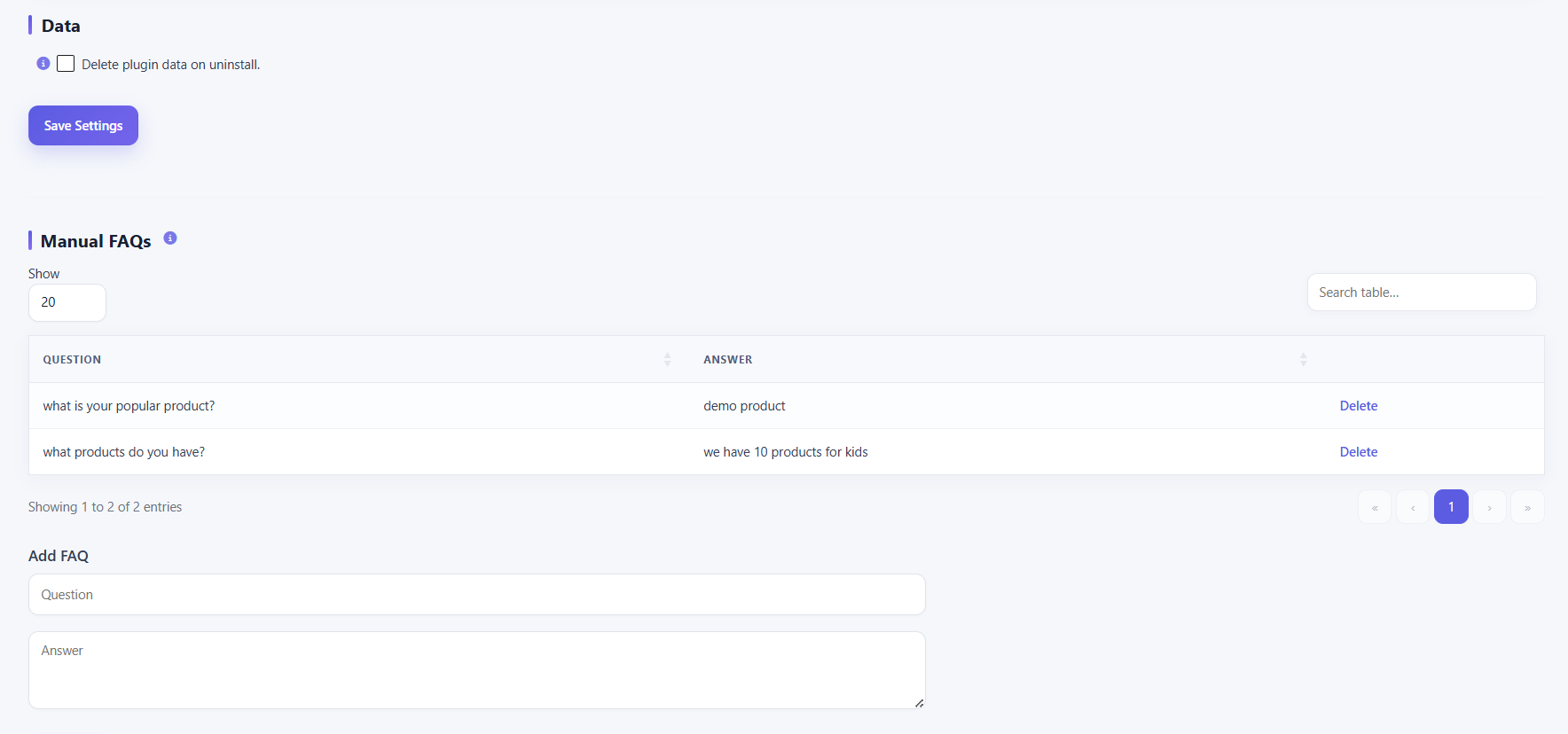
Data & Manual FAQs
Manage persistence and manual answers
The Data section controls whether plugin data is deleted during uninstall. Manual FAQs provide a simple question-and-answer knowledge layer with search, pagination, deletion and an Add FAQ form.
System Health
Check runtime and AI health
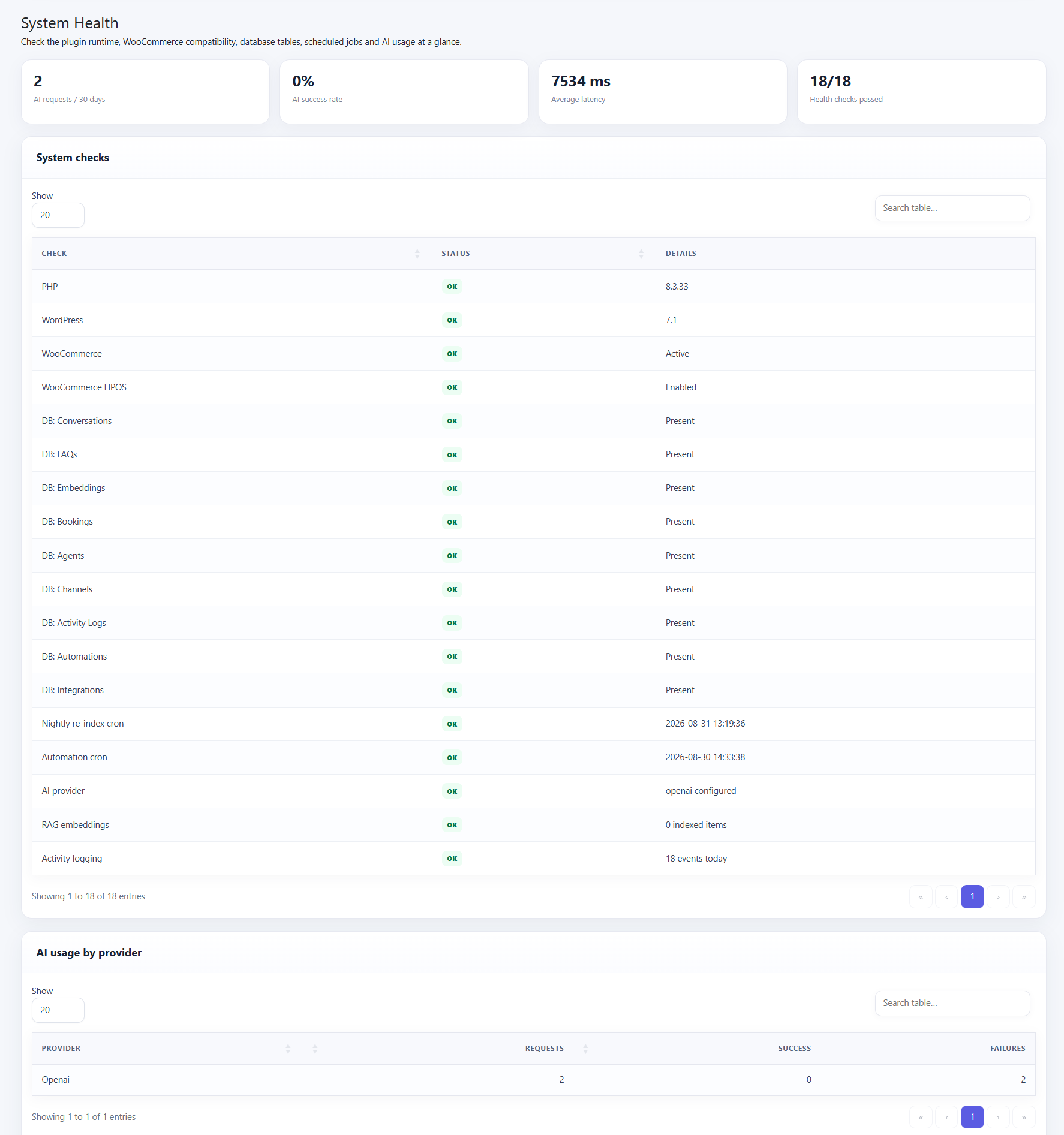
System Health presents high-level request, success, latency and health-check metrics, followed by detailed checks for PHP, WordPress, WooCommerce, database tables, scheduled jobs, AI provider configuration, RAG embeddings and activity logging. AI usage by provider is shown below.
Extensions / Phase 4
Optional capability packs and adapters
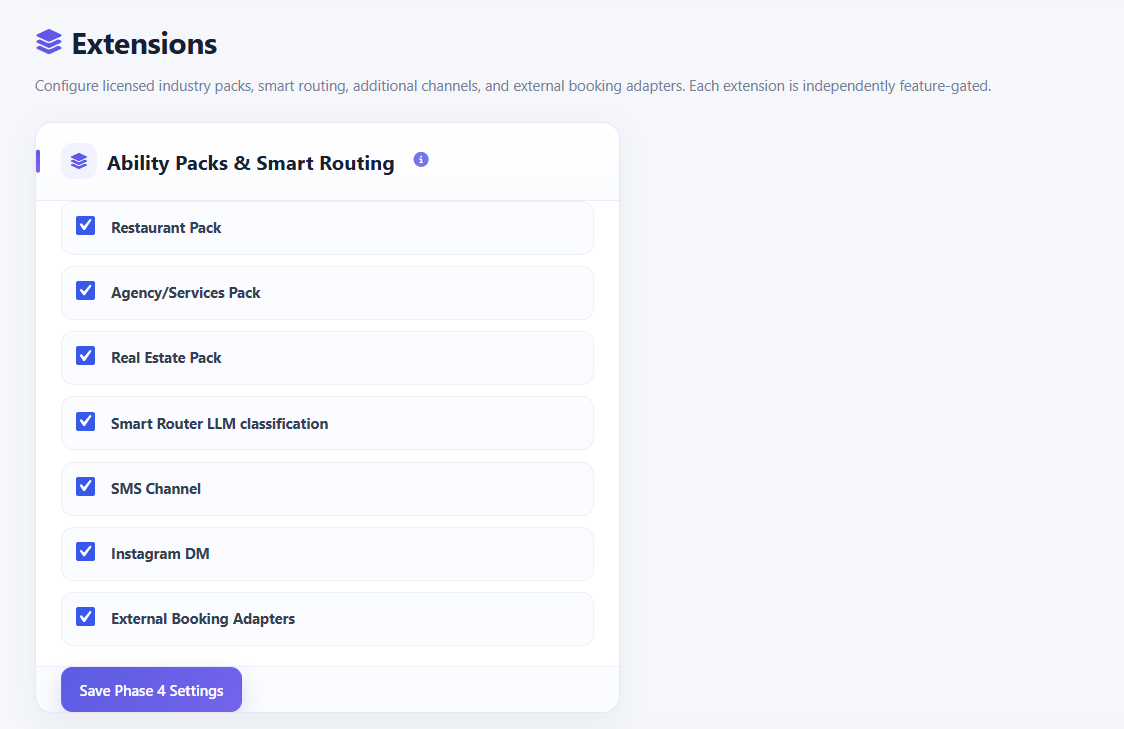
The Extensions screen groups optional capability packs and routing features. The supplied UI shows Restaurant Pack, Agency/Services Pack, Real Estate Pack, Smart Router LLM classification, SMS Channel, Instagram DM and External Booking Adapters as independently gated options.
External Booking Adapters
Connect supported booking systems
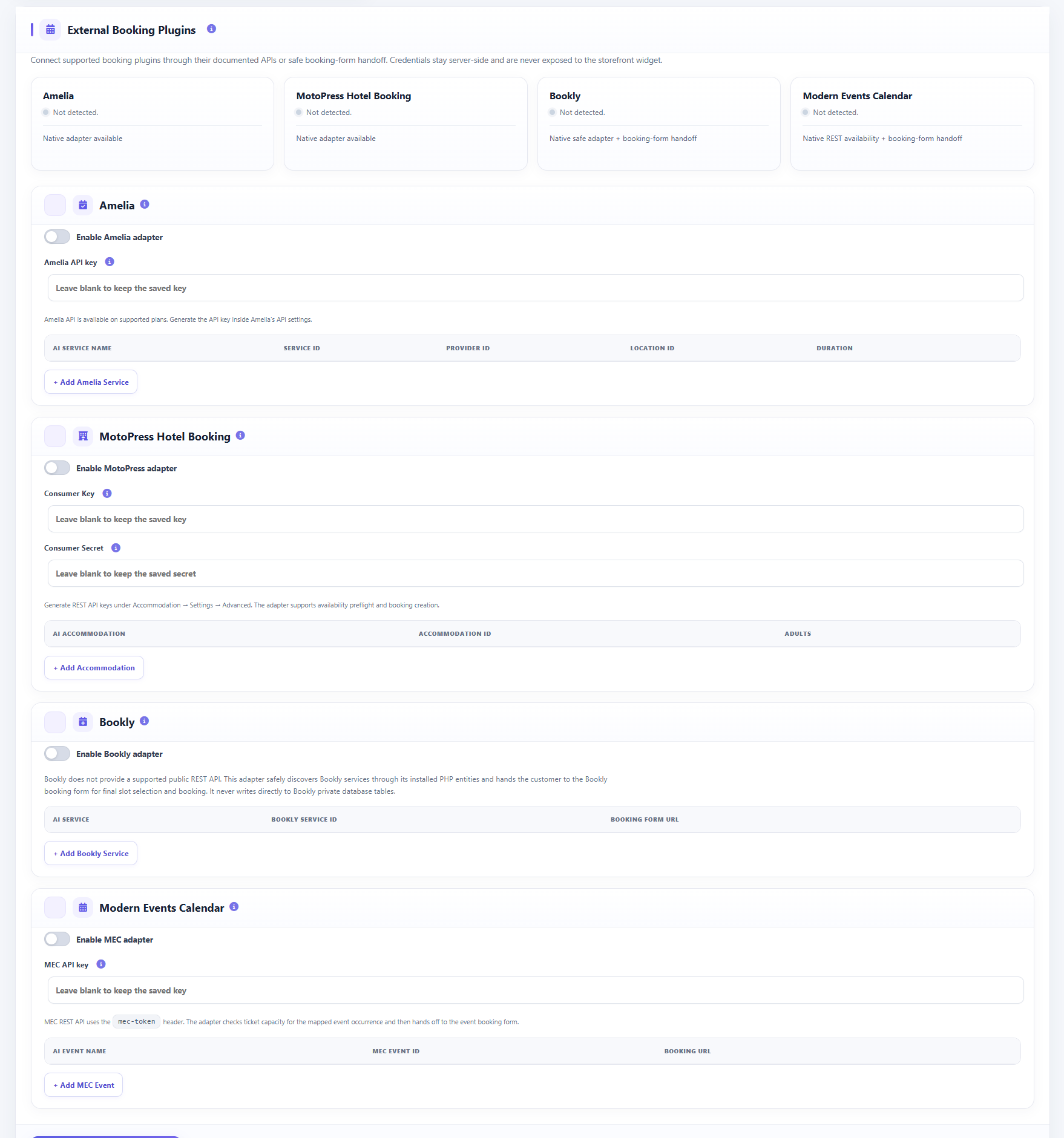
External Booking Plugins provides adapter configuration for Amelia, MotoPress Hotel Booking, Bookly and Modern Events Calendar. Depending on the adapter, configuration can include API credentials, service/accommodation/event mappings, durations and booking-form handoff URLs. Credentials remain server-side according to the UI guidance.
Automations
Build trigger → condition → action workflows
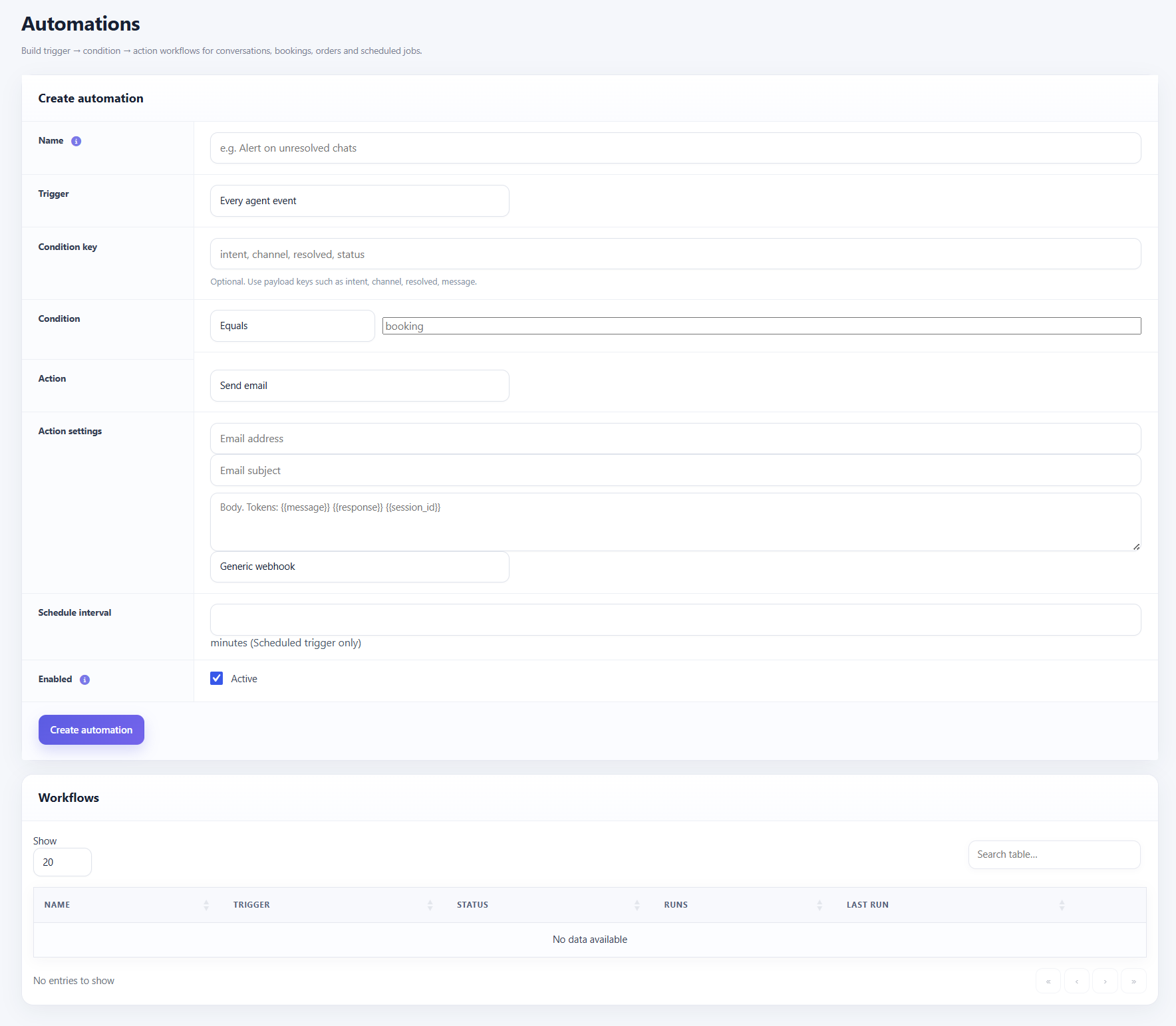
Create automations by defining a name, trigger, optional condition key, condition operator/value, action and action settings. The screen supports scheduled triggers through a schedule interval, and workflows can be enabled or disabled. Created workflows are listed with status, runs and last-run information.
Setup steps
- Enter a workflow name.
- Choose the trigger.
- Optionally define a condition key.
- Set the condition operator and value.
- Choose an action and fill its action settings.
- Add a schedule interval when using a scheduled trigger.
- Leave Enabled active and create the automation.
Integrations
Connect external services
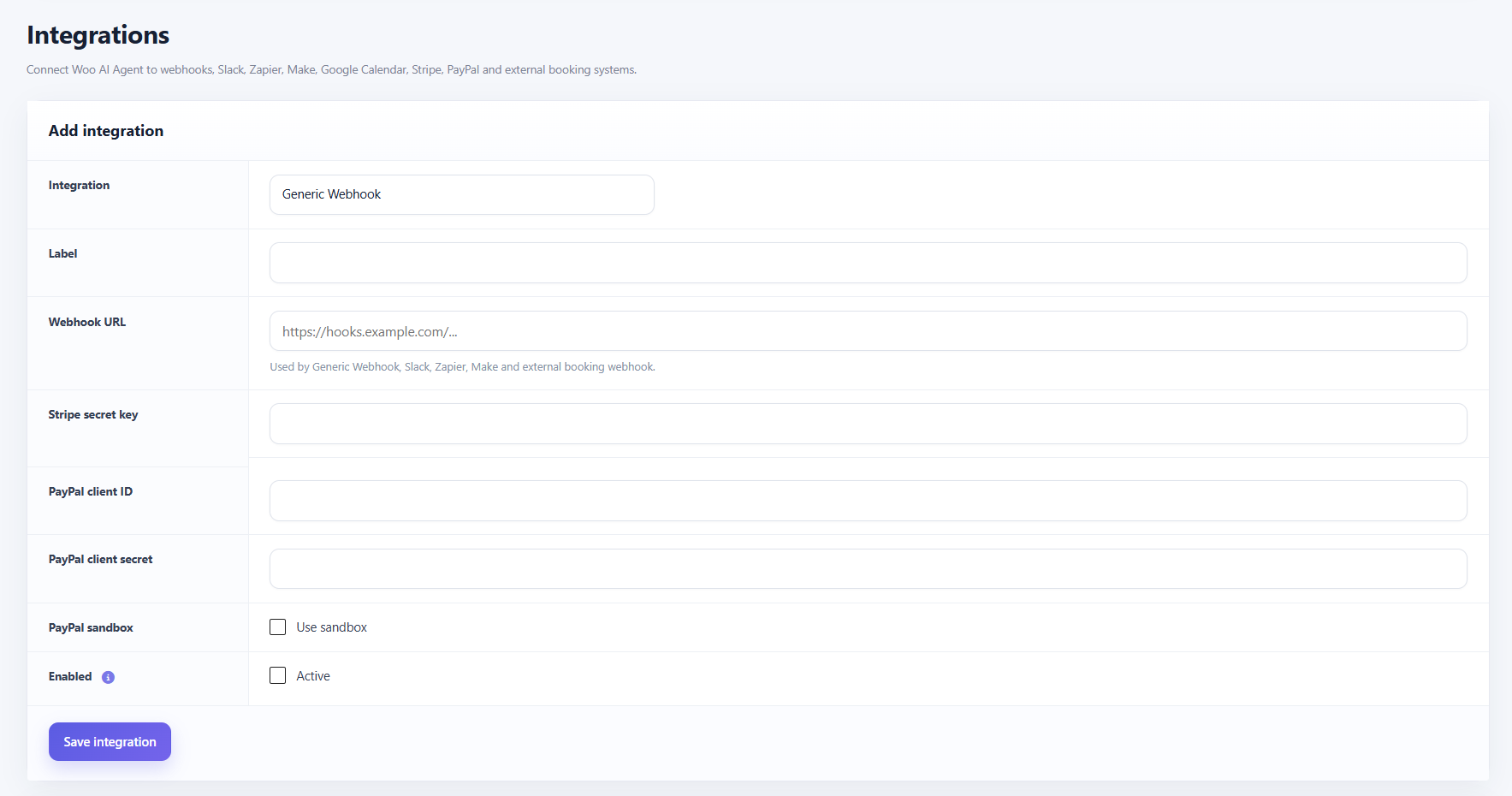
The Integrations screen supports configurable connections such as Generic Webhook and fields used by Slack, Zapier, Make, Stripe, PayPal and external booking webhooks. Save the integration and activate it when ready. Payment credentials and webhook URLs should be treated as sensitive configuration.
Setup steps
- Choose an integration type.
- Give the connection a recognizable label.
- Enter the webhook URL or service credentials required by the selected integration.
- Configure Stripe or PayPal credentials when applicable.
- Enable the integration.
- Save the integration and test the connected workflow.
Activity Logs
Trace requests and troubleshoot failures
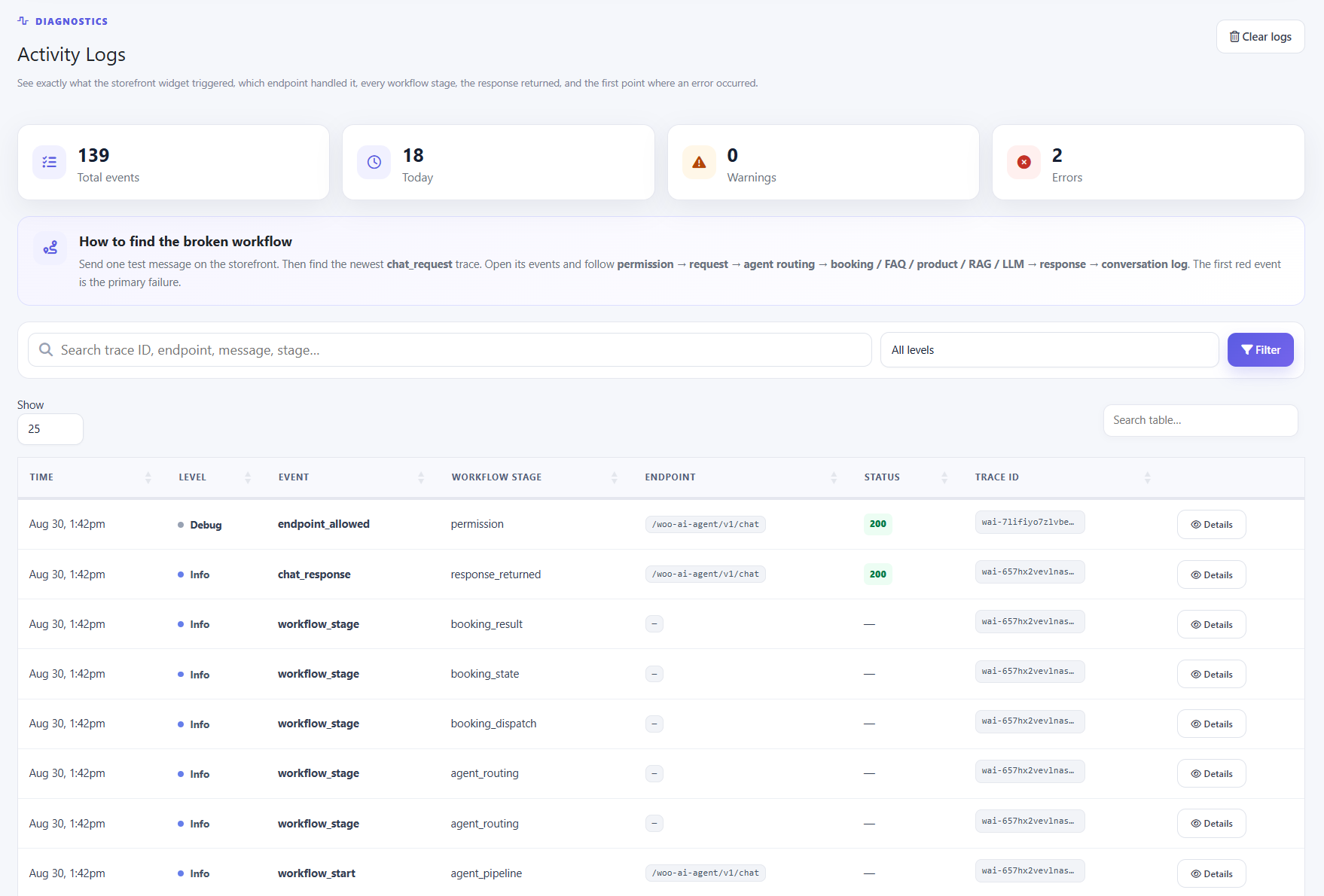
Activity Logs records diagnostic events and exposes totals for events, today's activity, warnings and errors. Search and level filters help narrow traces. The workflow guidance recommends following permission → request → agent routing → booking / FAQ / product / RAG / LLM → response → conversation log to locate the first failure.
Setup steps
- Send a test message through the storefront widget.
- Open Activity Logs and locate the newest chat_request trace.
- Open Details for the trace.
- Follow the workflow stages in sequence.
- Find the first error or unexpected status; that event is the primary troubleshooting target.
Pro → White-Label Mode
Base white-label configuration
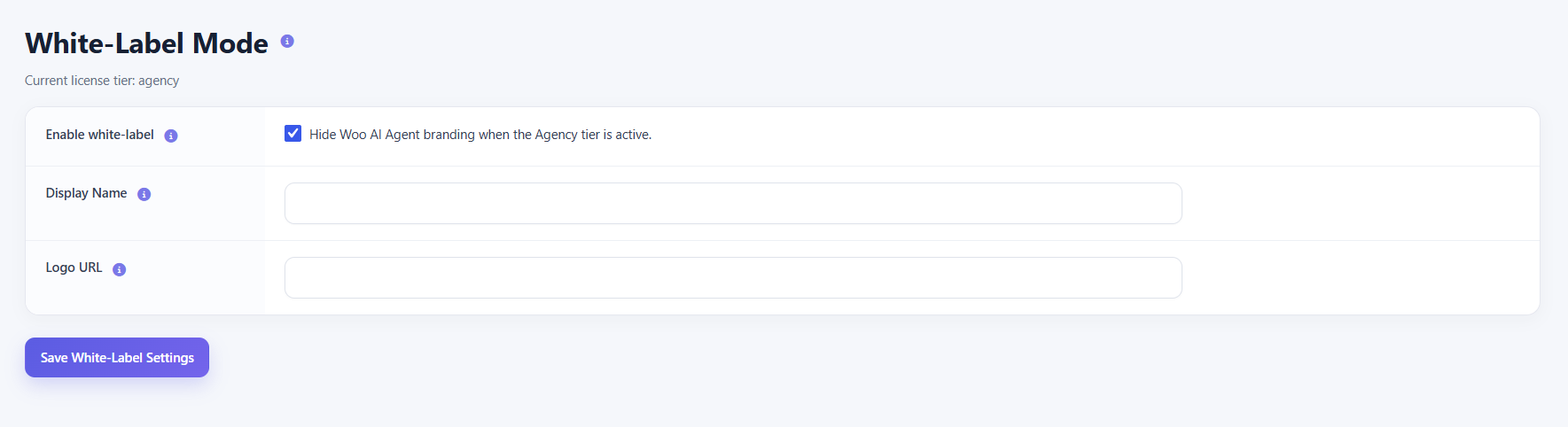
The Pro white-label screen lets an Agency-tier installation hide BeastThemes AI Agent for WooCommerce branding and configure a display name and logo URL. Save the settings to apply the identity to supported surfaces.
Channel Connections
Connect Telegram, WhatsApp, SMS and Instagram DM
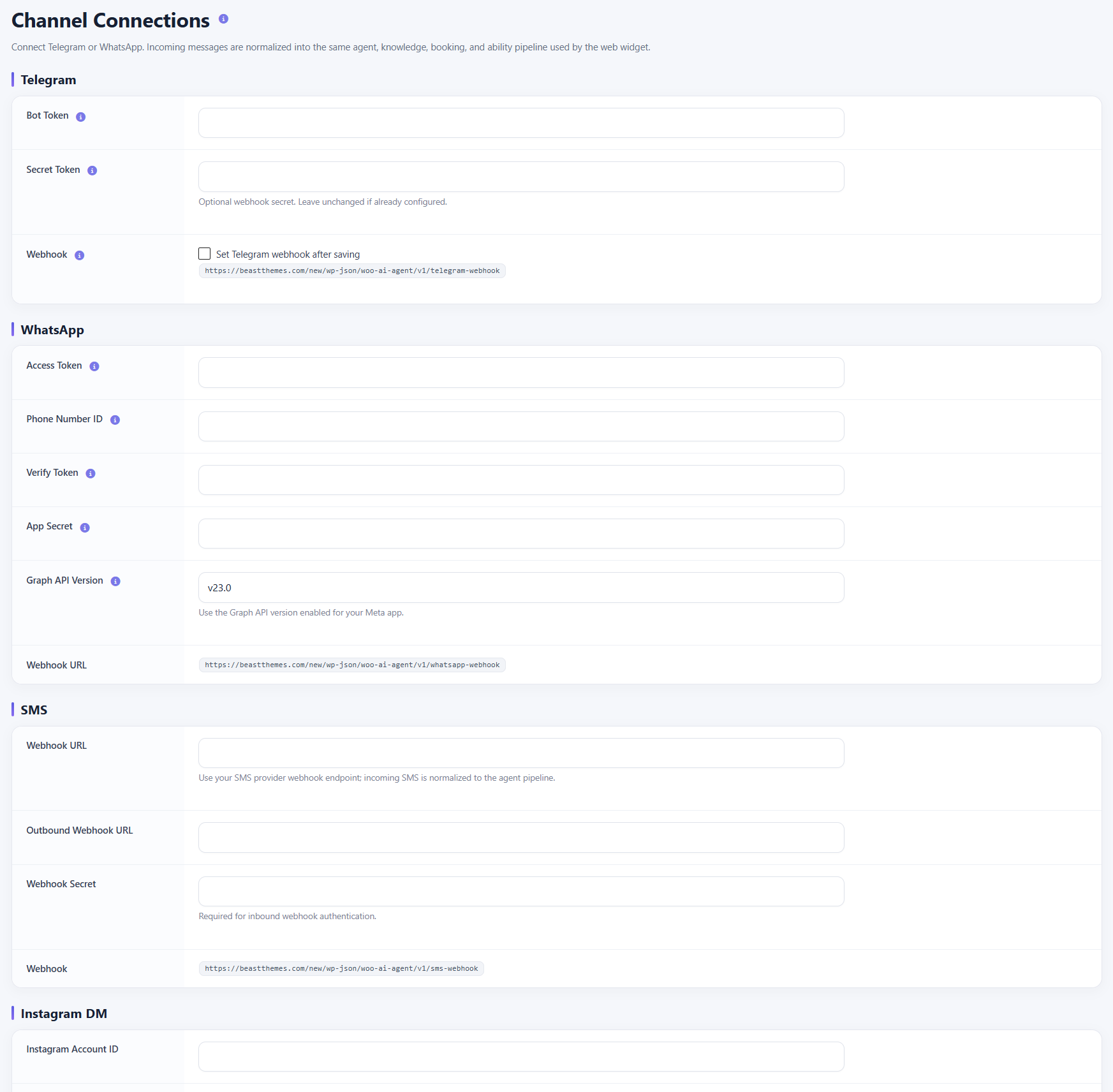
Channel Connections normalizes incoming messages into the same agent, knowledge, booking and ability pipeline used by the web widget. The supplied UI includes Telegram bot credentials and webhook configuration, WhatsApp access and app credentials, SMS inbound/outbound webhook fields, and Instagram account configuration.
Setup steps
- Choose the channel you want to connect.
- Enter the required credentials.
- Configure the channel webhook using the URL shown by the plugin.
- Save the configuration.
- Send a test inbound message and verify the conversation is routed through the same agent pipeline.
AI Agent Roles
Create role-based agents
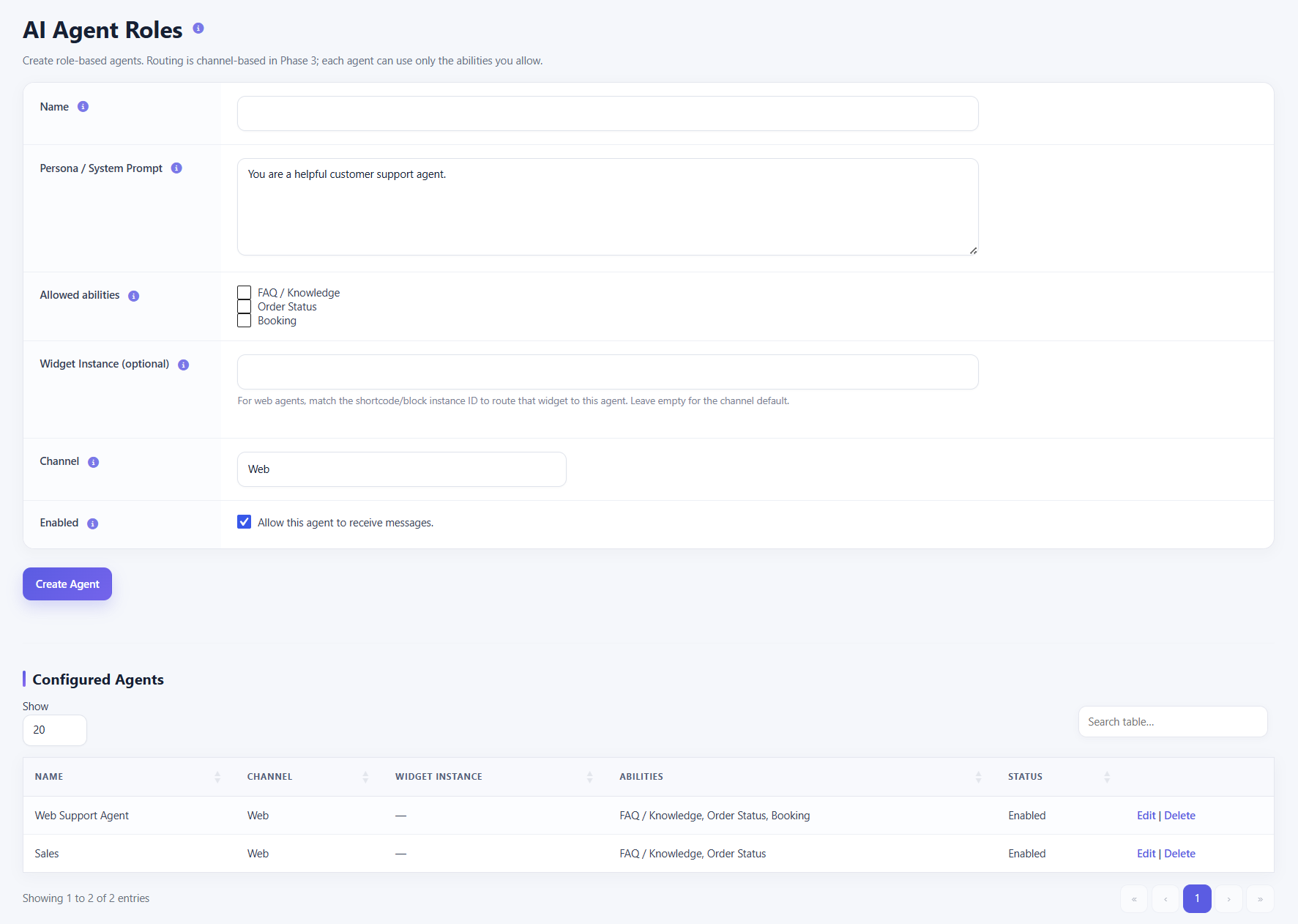
AI Agent Roles lets you create specialized agents with a name, persona/system prompt, allowed abilities, optional widget instance, channel and enabled state. Allowed abilities shown in the UI include FAQ / Knowledge, Order Status and Booking. Configured agents can then be reviewed and edited from the table.
Setup steps
- Enter an agent name.
- Write the Persona / System Prompt.
- Select the abilities the agent is allowed to use.
- Optionally provide a Widget Instance identifier.
- Choose the channel.
- Enable the agent and create it.
- Review the Configured Agents table and edit or delete agents as needed.
AI Agent Analytics
Measure operational performance
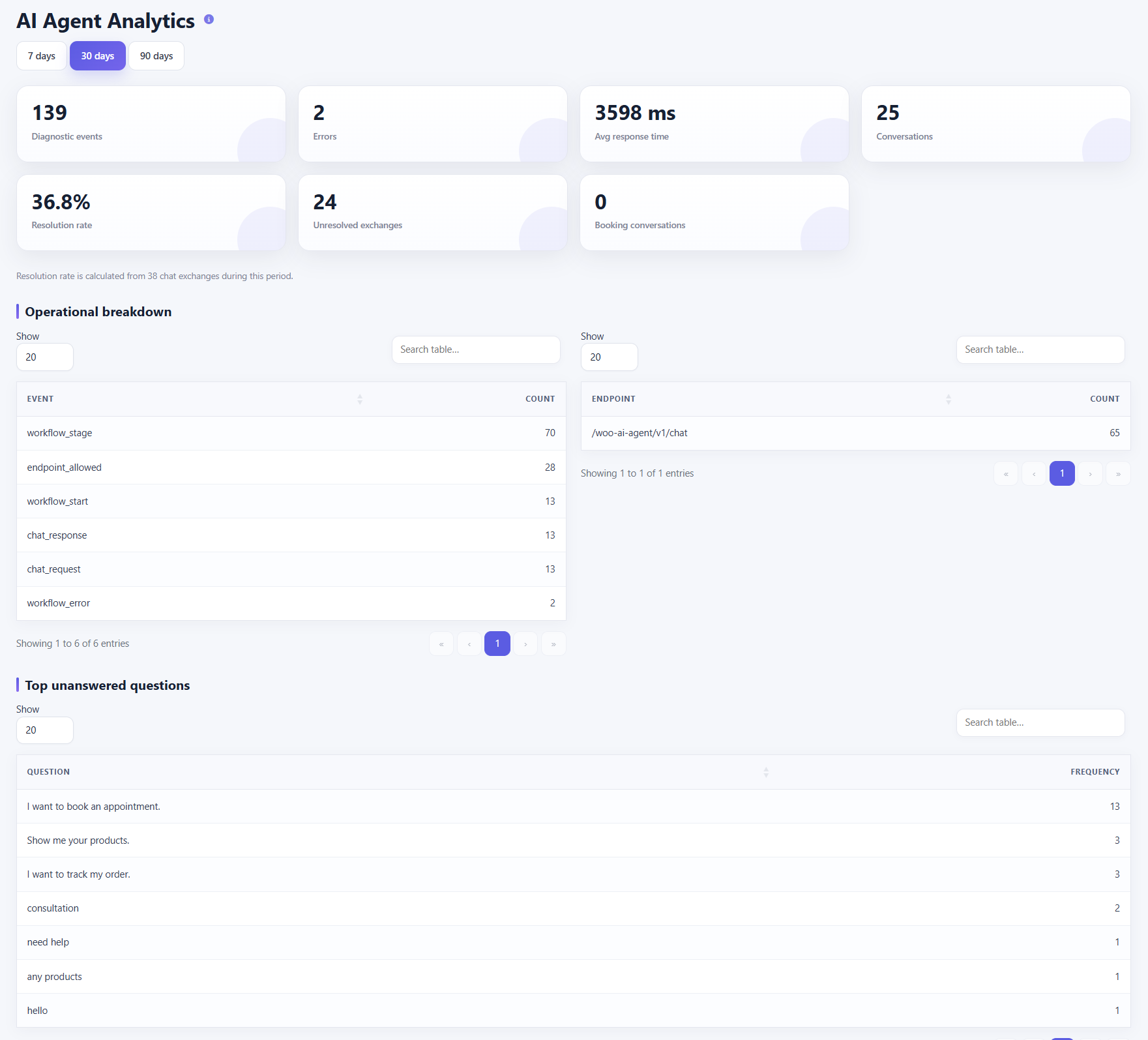
Analytics provides selectable reporting windows and summary metrics including diagnostic events, errors, average response time, conversations, resolution rate, unresolved exchanges and booking conversations. Operational breakdowns show event and endpoint counts, while Top unanswered questions highlights recurring customer questions.
Frontend AI Chat Widget
Customer-facing experience
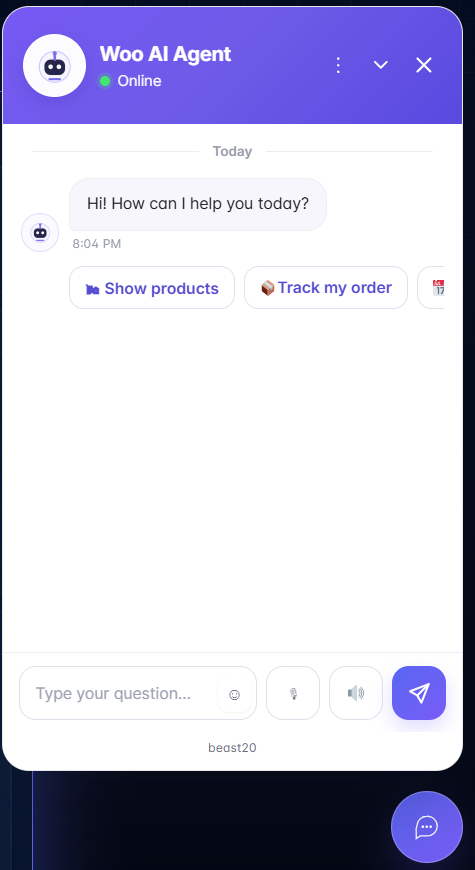
The storefront widget provides a branded conversation panel with online state, quick actions such as Show products and Track my order, text input, emoji, microphone and audio controls, send action and the configured brand label. Its exact available controls depend on the enabled Pro configuration.
Agency Addon → Dashboard
Manage agency deployments from one place
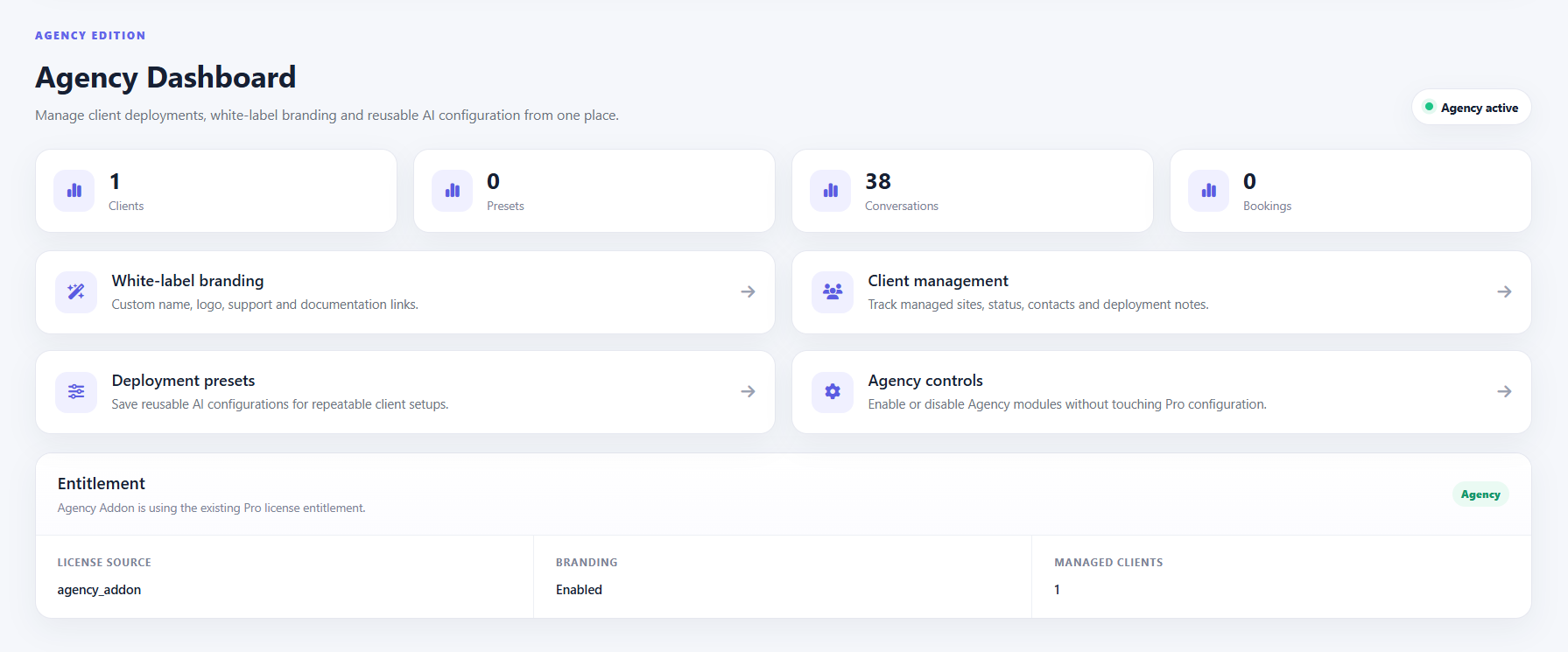
The Agency Dashboard provides an overview of clients, presets, conversations and bookings, plus shortcuts for white-label branding, client management, deployment presets and agency controls. The entitlement panel shows the Agency license source, branding state and managed-client count.
Setup steps
- Confirm the Agency entitlement is active.
- Review client, preset, conversation and booking counts.
- Use the dashboard shortcuts to open branding, clients, presets or controls.
- Use the entitlement panel to verify branding and managed-client status.
Agency Clients
Maintain client/site records
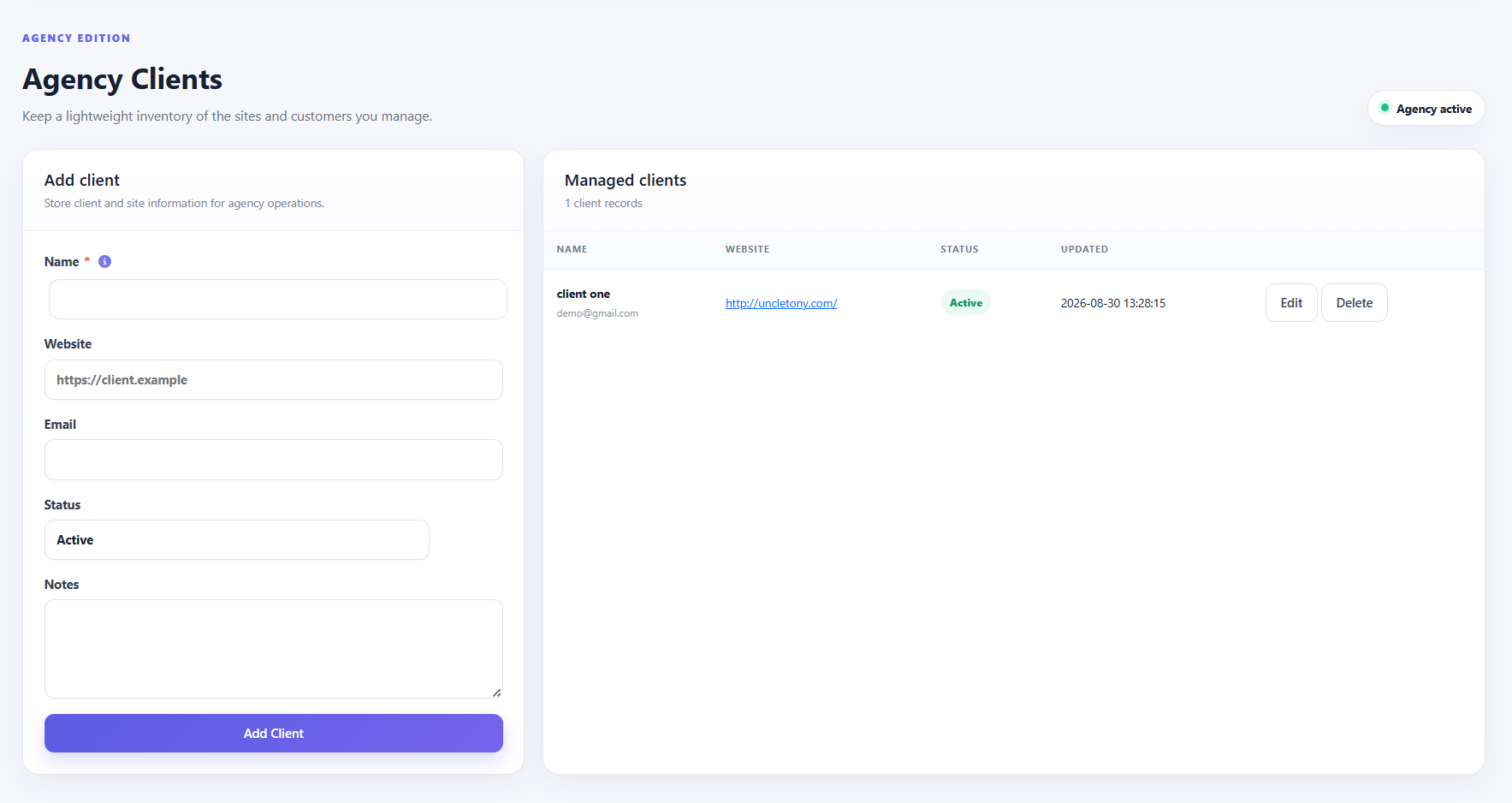
Agency Clients provides a lightweight inventory of managed customers and sites. Add a client with name, website, email, status and notes, then manage existing records with Edit and Delete actions.
Setup steps
- Enter the client name.
- Add the client website and email.
- Choose the status.
- Add internal notes if needed.
- Click Add Client.
- Use Edit or Delete to manage existing client records.
Agency Presets
Reuse configurations for client deployments
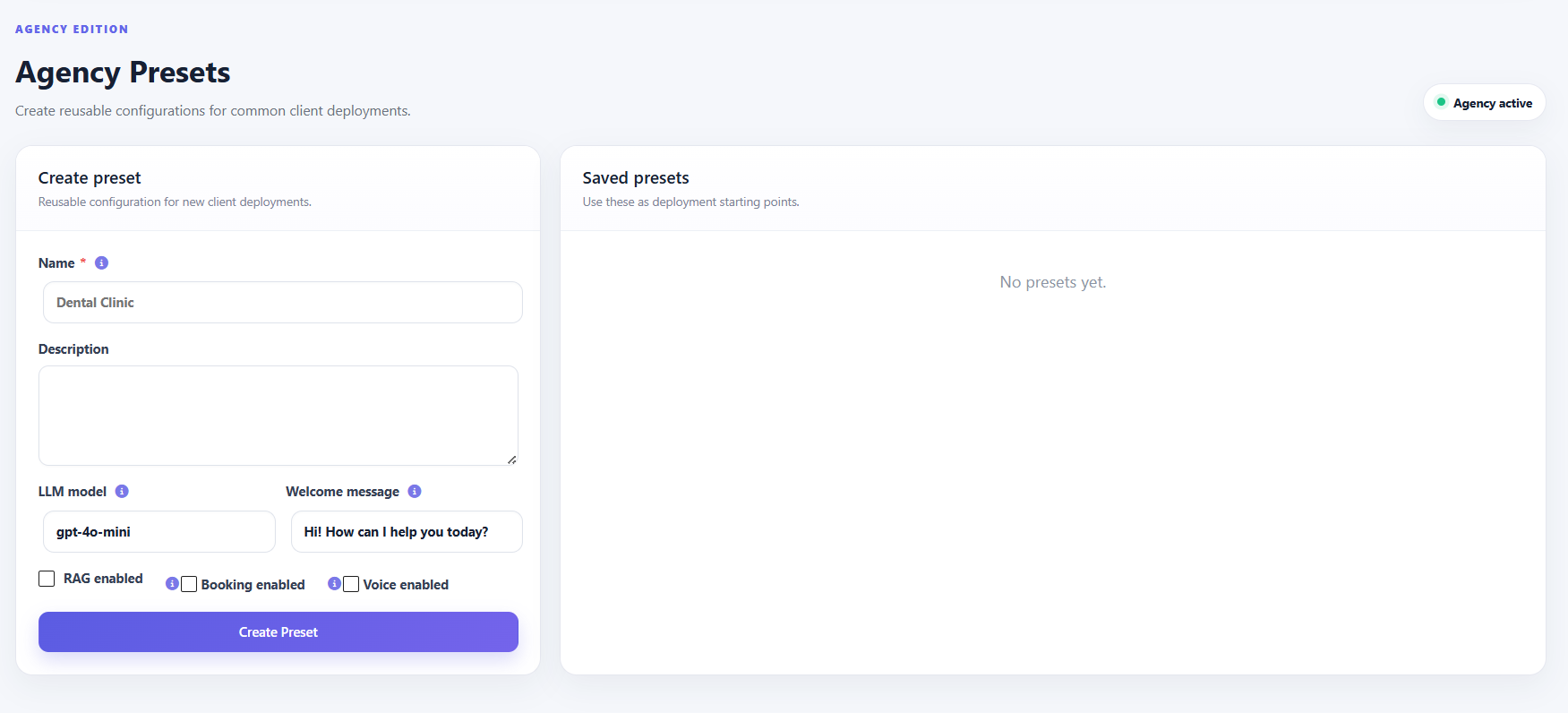
Create reusable presets with a name, description, LLM model, welcome message and feature flags for RAG, booking and voice. Saved presets appear in the Saved presets area and can serve as starting points for repeat deployments.
Setup steps
- Enter a preset name.
- Add a description for the deployment use case.
- Choose the LLM model.
- Set the welcome message.
- Enable RAG, Booking and Voice according to the intended deployment.
- Click Create Preset and verify it appears in Saved presets.
Agency White-Label Branding
Brand the supported storefront surfaces
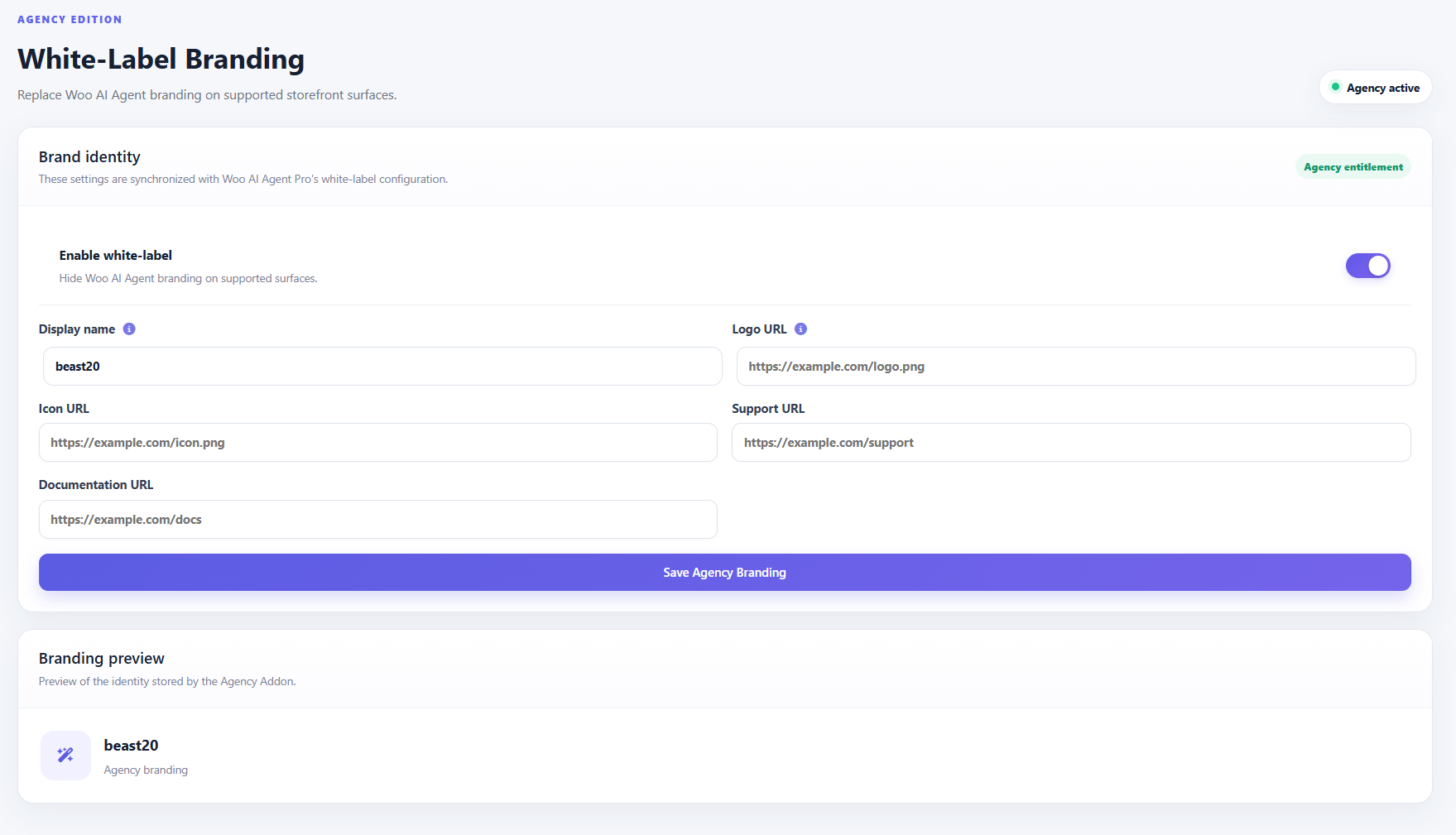
Agency White-Label Branding synchronizes its identity settings with BeastThemes AI Agent for WooCommerce Pro's white-label configuration. Enable white-labeling, set the display name, logo URL, icon URL, support URL and documentation URL, then save Agency Branding. The preview area shows the stored identity.
Setup steps
- Enable white-label branding.
- Enter the display name.
- Add the logo URL and optional icon URL.
- Add support and documentation URLs.
- Click Save Agency Branding.
- Confirm the identity in Branding preview.
Agency Settings
Control agency modules
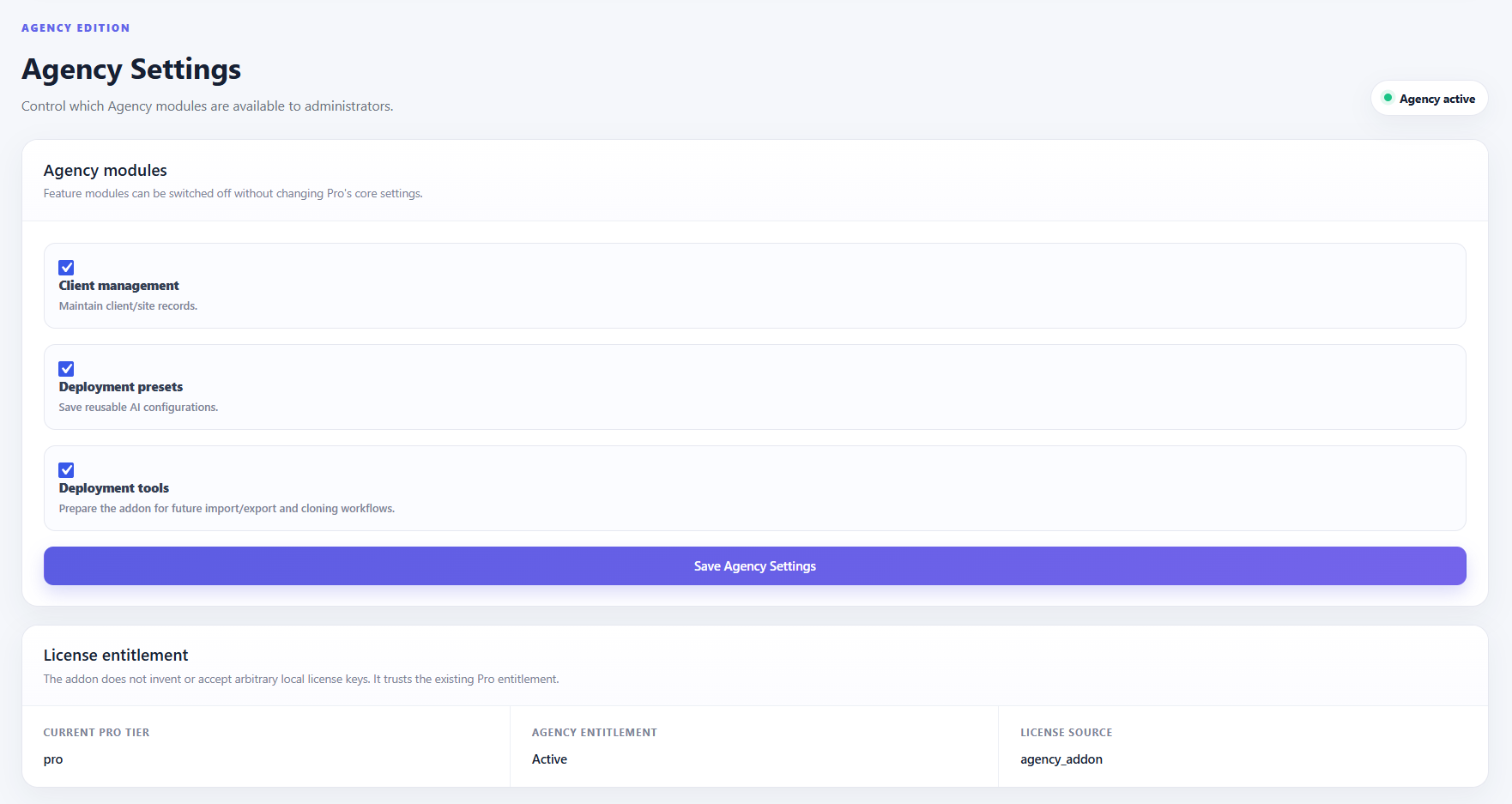
Agency Settings lets administrators enable or disable Agency modules without changing Pro's core settings. The supplied UI includes Client management, Deployment presets and Deployment tools. The entitlement section shows the current Pro tier, Agency entitlement state and license source.
Setup steps
- Review the available Agency modules.
- Enable Client management when maintaining client/site records.
- Enable Deployment presets for reusable configurations.
- Enable Deployment tools when using deployment workflows.
- Click Save Agency Settings.
- Review the License entitlement panel.
Security & Data
Protect credentials, customer data and operational logs
BeastThemes AI Agent for WooCommerce stores configuration and operational data used by the agent, knowledge, booking, channel and diagnostics features. Treat API keys, access tokens, webhook secrets, payment credentials and booking credentials as sensitive configuration.
Credential handling
- Keep LLM, embedding, voice, Telegram, WhatsApp, SMS, Instagram and external booking credentials private.
- Do not publish API keys, webhook secrets or payment credentials in screenshots, documentation or support tickets.
- Use the plugin's server-side configuration fields rather than exposing secrets in storefront JavaScript.
- Use separate credentials for development/testing and production where your provider supports it.
Uninstall & data retention
The Data section includes an option to delete plugin data on uninstall. Decide on the desired retention policy before removing the plugin, especially when conversations, FAQs, embeddings, bookings or diagnostics are important to your business.
Troubleshooting
Find and isolate configuration and workflow failures
1. Start with System Health
Open System Health and confirm the environment checks are passing. Review PHP, WordPress, WooCommerce, HPOS, database tables, scheduled jobs, AI provider configuration, RAG status and activity logging.
2. Reproduce the problem
- Send one test message through the storefront widget or connected channel.
- Record the exact customer request and expected result.
- Open Activity Logs and locate the newest
chat_requesttrace. - Open the trace details and follow the workflow from permission through response.
3. Follow the workflow stages
Use the diagnostic sequence shown in the Activity Logs UI: permission → request → agent routing → booking / FAQ / product / RAG / LLM → response → conversation log. The first red/error event is the best starting point for investigation.
Common checks
- AI response failure: verify provider, model and LLM API key.
- RAG returns nothing: check embedding provider/model and indexing status, then run a site re-index if required.
- Booking does not work: confirm bookings are enabled, services have valid duration/availability, and external adapters are configured when used.
- Voice does not work: verify Voice Mode is enabled and browser/provider speech settings are compatible.
- Channel messages do not arrive: verify webhook URLs, provider credentials, webhook secrets and channel configuration.
- Agency features are unavailable: verify the Agency entitlement and module switches.
Production Checklist
A practical final review before launching an AI agent
Core configuration
- ☐ Confirm WordPress and WooCommerce are supported and healthy.
- ☐ Select the intended AI provider and production model.
- ☐ Add and verify the LLM API key.
- ☐ Set the business name and business description.
- ☐ Review the embedding provider/model and indexing status.
Knowledge & commerce
- ☐ Add important Manual FAQs.
- ☐ Run a full site re-index when using RAG.
- ☐ Test product questions and product discovery.
- ☐ Enable secure order lookup if customers need order status.
Bookings
- ☐ Enable bookings when appointments are offered.
- ☐ Define each bookable service, duration and daily availability.
- ☐ Test appointment creation end-to-end.
- ☐ If using an external booking system, configure and test the correct adapter and booking handoff.
Channels & voice
- ☐ Test the web widget.
- ☐ Test each enabled Telegram, WhatsApp, SMS or Instagram DM connection.
- ☐ Verify webhook delivery and secrets.
- ☐ Test microphone/STT/TTS functionality if Voice Mode is enabled.
Monitoring & launch
- ☐ Review System Health.
- ☐ Send representative test conversations and inspect Activity Logs.
- ☐ Review Analytics for errors, unresolved exchanges and unanswered questions.
- ☐ Confirm white-label branding, support and documentation links.
- ☐ For agencies, verify client records, presets, modules and entitlement.
Developer reference
Frontend shortcode, REST endpoints, extension points and package structure
Frontend shortcode
[woo_ai_agent]
[woo_ai_agent id="support"]
REST endpoints
| Endpoint | Method | Purpose |
|---|---|---|
/wp-json/woo-ai-agent/v1/session | GET | Public storefront session. |
/wp-json/woo-ai-agent/v1/chat | POST | Public storefront chat. |
/wp-json/woo-ai-agent/v1/voice/transcribe | POST | Voice transcription. |
/wp-json/woo-ai-agent/v1/voice/speak | POST | Text-to-speech. |
/wp-json/woo-ai-agent/v1/telegram-webhook | POST | Telegram webhook. |
/wp-json/woo-ai-agent/v1/whatsapp-webhook | GET/POST | WhatsApp webhook/verification. |
/wp-json/woo-ai-agent/v1/sms-webhook | POST | SMS inbound webhook. |
/wp-json/woo-ai-agent/v1/instagram-webhook | POST | Instagram webhook. |
Useful extension points present in the package
woo_ai_agent_license_tier— Pro licensing tier filter.woo_ai_agent_agency_entitlement— Agency entitlement bridge.woo_ai_agent_agency_branding_active— Agency branding activation filter.woo_ai_agent_admin_branding— Agency admin branding customization filter.woo_ai_agent_external_booking_availabilityandwoo_ai_agent_external_create_booking— external booking bridge points used by the booking architecture.
Package structure
Core areas include includes/api, includes/abilities, includes/knowledge, includes/bookings, includes/channels, includes/automation, includes/integrations, includes/agents, includes/voice and includes/admin.
FAQ
Frequently asked setup and usage questions
What is BeastThemes AI Agent for WooCommerce?
BeastThemes AI Agent for WooCommerce is an AI-powered support and commerce assistant for WooCommerce, with configurable knowledge/RAG, product and order assistance, booking, voice, channels, agents, automations, integrations and diagnostics.
Does it support bookings?
Yes. The Pro configuration includes an internal Booking System where you can define services, duration and daily availability. External booking adapters can connect supported systems such as Amelia, MotoPress Hotel Booking, Bookly and Modern Events Calendar.
Can customers track orders?
Yes. The interface includes a WooCommerce Order Status capability for secure customer order lookup, and Order Status can also be granted as an ability to an AI Agent Role.
Can I use my own AI provider key?
The settings screen is designed around a selected AI provider, model and LLM API key. The supplied configuration specifically shows OpenAI and notes that the embedding API key can reuse the LLM key when OpenAI embeddings are selected.
What is RAG used for?
RAG adds an indexed knowledge layer that the agent can retrieve from. The settings expose embedding provider/model configuration, background batch size and indexing status, including a full site re-index action.
Can I create multiple specialized agents?
Yes. AI Agent Roles supports multiple configured agents with different personas, abilities, channels and optional widget instances.
Can I connect Telegram or WhatsApp?
Yes. Channel Connections provides dedicated configuration for Telegram and WhatsApp, along with SMS and Instagram DM sections. Each provider requires its own credentials and webhook configuration.
What does the Agency Addon provide?
The Agency Edition adds client management, reusable deployment presets, agency module controls and white-label branding, while using the existing Pro entitlement shown in the supplied screens.
Where should I look when something fails?
Start with System Health, reproduce the issue, then inspect the newest Activity Logs trace and identify the first failing workflow stage.
How do I get support?
Use the support URL configured in the white-label/agency branding settings or the support process provided with your BeastThemes purchase.